Quick Answer
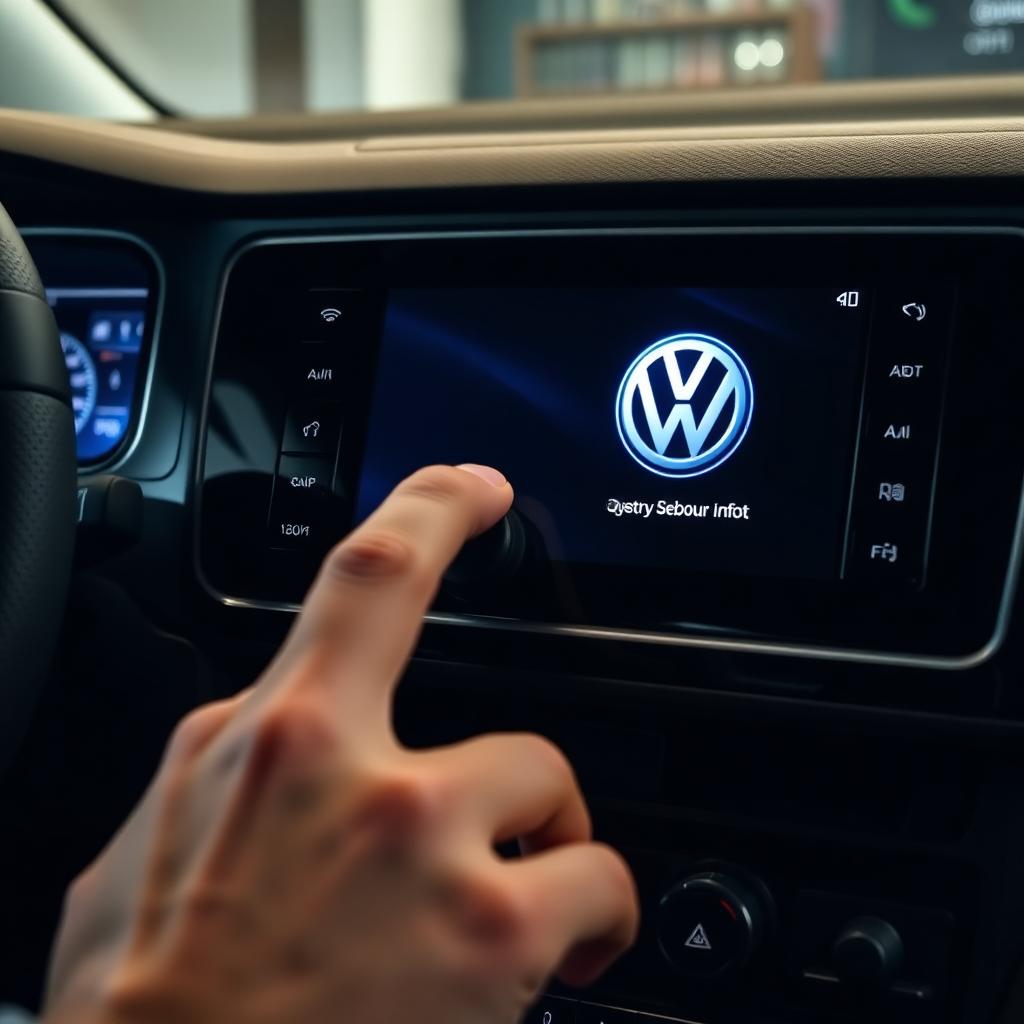
To reset a Volkswagen infotainment system, press and hold the volume knob for 15 to 20 seconds until the VW logo flashes. That is the soft reboot for MIB1, MIB2, and MIB3. If the screen stays black, do a hard reset by parking, switching off, opening the driver door, and waiting 10 minutes. For deep issues, do a factory reset from Settings, Factory Settings.
The volume knob hold is the universal first move. It clears 90 percent of frozen screens, looping Bluetooth pairings, and dropped CarPlay sessions without touching saved data.
Which MIB do I actually have
The reset steps are the same, but the menu paths shift slightly by generation:
- MIB1 (2014 to 2016 Golf, Jetta, Passat): physical knobs on both sides of the screen.
- MIB2 (2017 to 2019 most models, including Atlas and Tiguan): touch sliders for volume on some trims, physical knob on others.
- MIB3 (2020 onward, including ID.4 and MK8 Golf): mostly capacitive touch, voice assistant, online services.
Method 1: the 15 second soft reboot
This clears RAM and restarts the head unit OS without erasing presets, paired phones, or navigation favorites.
- Ignition on, infotainment powered up.
- Press and hold the volume knob (or the power touch icon on capacitive screens).
- Keep holding through the screen going dark. Do not release after 5 seconds.
- Continue for a full 15 to 20 seconds.
- Release the moment the VW logo flashes back on.
The system completes a full kernel reboot in another 30 to 60 seconds. The radio comes back at the last station, the saved navigation destinations are intact, and Bluetooth pairings remain.
Method 2: the hard hardware reset
If the screen is completely black or the soft reboot fails, I need to drop power to the head unit through the Body Control Module's accessory timeout.
- Park on a level surface and switch the engine off.
- Take the key out of the ignition (or press Start once on a push button car so the system enters sleep).
- Open the driver door. This signals the BCM to cut Retained Accessory Power.
- Walk away for 10 minutes. The capacitors in the head unit need that long to fully discharge.
- Return, close the door, start the engine, and let the system cold boot.
Method 3: factory reset (MIB2 and MIB3)
If the system still glitches after a hard reset, a factory restore wipes the user data partition and forces the OS back to its delivered state.
- Tap the Menu or Home button.
- Open Settings (gear icon).
- Scroll down to Factory Settings.
- Choose All Settings (full wipe) or a specific module (just Bluetooth, just Radio, just Navigation, etc.).
- Confirm Reset. The system reboots and runs through a first start setup.
After a full factory reset I have to pair my phone again, set my home address, and re enter any subscription service credentials.
What a reset does not fix
A reset clears software glitches. It does not fix:
- A failed display panel (dead pixels, vertical lines, total dark with no backlight).
- A broken touch digitizer (taps register in the wrong spot).
- A failed CD or SD card reader.
- A burnt out amplifier (sound through some speakers but not others).
- Software bugs from an outdated firmware. Those need a dealer flash or, on MIB3, an over the air update.
CarPlay and Android Auto specific fixes
Wireless CarPlay on MIB3 is the source of more reset requests than anything else. Before doing a factory reset I try:
- Forget the car on the phone, forget the phone on the head unit, then re pair.
- Toggle airplane mode on the phone, then back off.
- Update iOS or Android to the latest version.
- Confirm CarPlay is enabled in iPhone Settings, Screen Time, Content Privacy, Allowed Apps.
If the phone connects but the screen mirrors then drops, the 15 second volume hold usually fixes it without going further.
When a dealer trip is unavoidable
Two situations require a dealer visit even after every reset trick:
- SOS or eCall warning that persists. Those modules are tied to the cellular gateway and need VW's online tools.
- Persistent navigation map errors. Map data updates ship through the dealer or the VW Connect portal. A reset cannot fix corrupted map files.
Pro tips
- Document the Bluetooth devices and radio presets before a factory reset. The wipe is total.
- Keep the car running during a soft reboot. Cycling the ignition mid reboot can corrupt the partition.
- If the screen behaves badly only after firmware updates, ask the dealer to check the head unit software version against the latest TSB.
The takeaway
A frozen VW infotainment system rarely needs more than the 15 second volume knob hold. Hard reset by removing power for 10 minutes if the screen is dead. Factory reset only when the system is still flaky after both. Save the dealer trip for hardware faults or persistent map errors. The reset progression covers everything else.