

Quick Answer
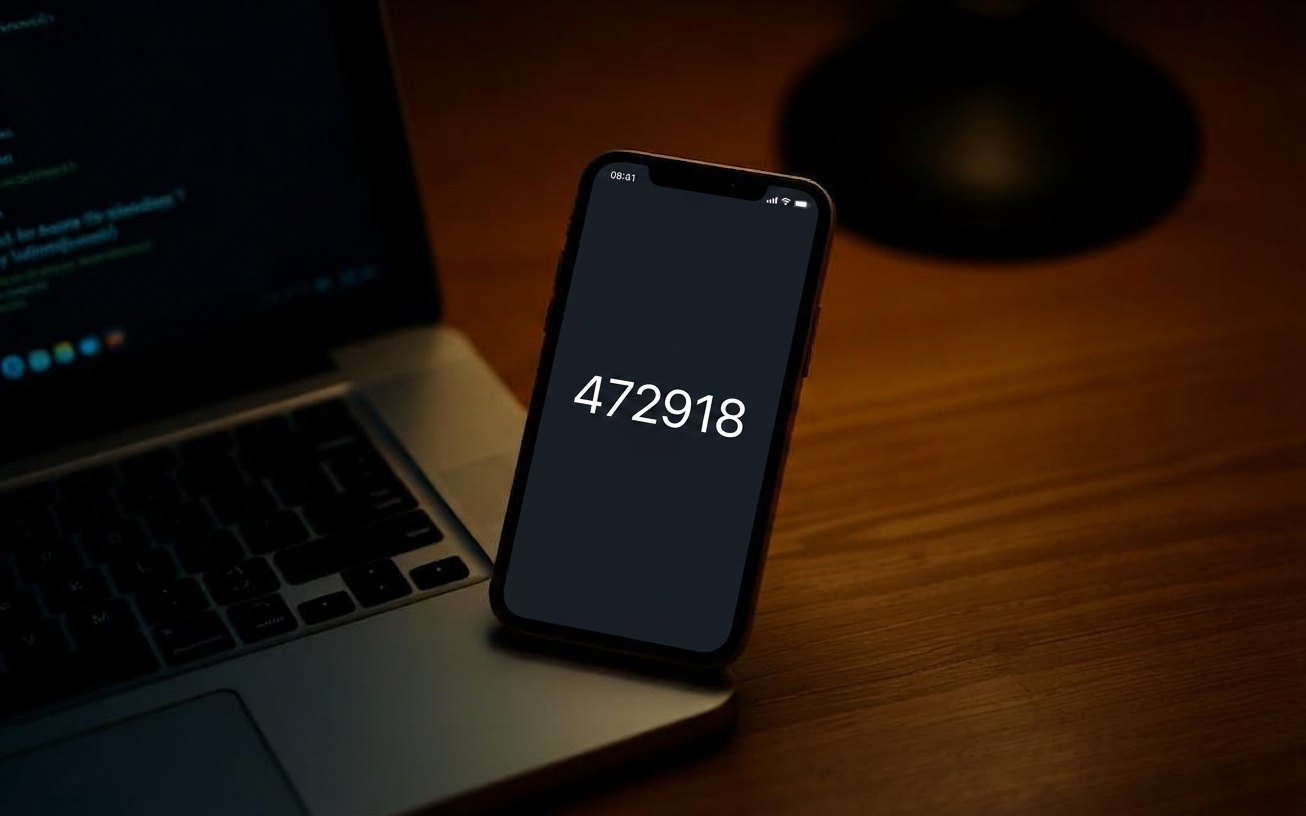
To set up two factor authentication (2FA), open the security settings of each important account, choose two factor or login verification, and pick the strongest method available, ideally an authenticator app or a hardware security key. Scan the QR code with your authenticator app, then save the backup codes somewhere safe.
Authenticator apps like Google Authenticator, Microsoft Authenticator, and Authy are far more secure than SMS codes, which can be intercepted by SIM swap attacks. Hardware keys like YubiKey go a step further by requiring a physical touch.
Start with your email and your password manager, since those control access to everything else. Then add 2FA to your bank, social, and cloud storage accounts.
Why 2FA matters more than a stronger password
Even a long, unique password can be stolen through a phishing site or a data breach. Two factor authentication adds a second proof of identity, usually a rotating code or a physical key, that an attacker cannot recreate just by knowing your password. It is the single biggest security upgrade you can make in 10 minutes.
The three 2FA methods, ranked
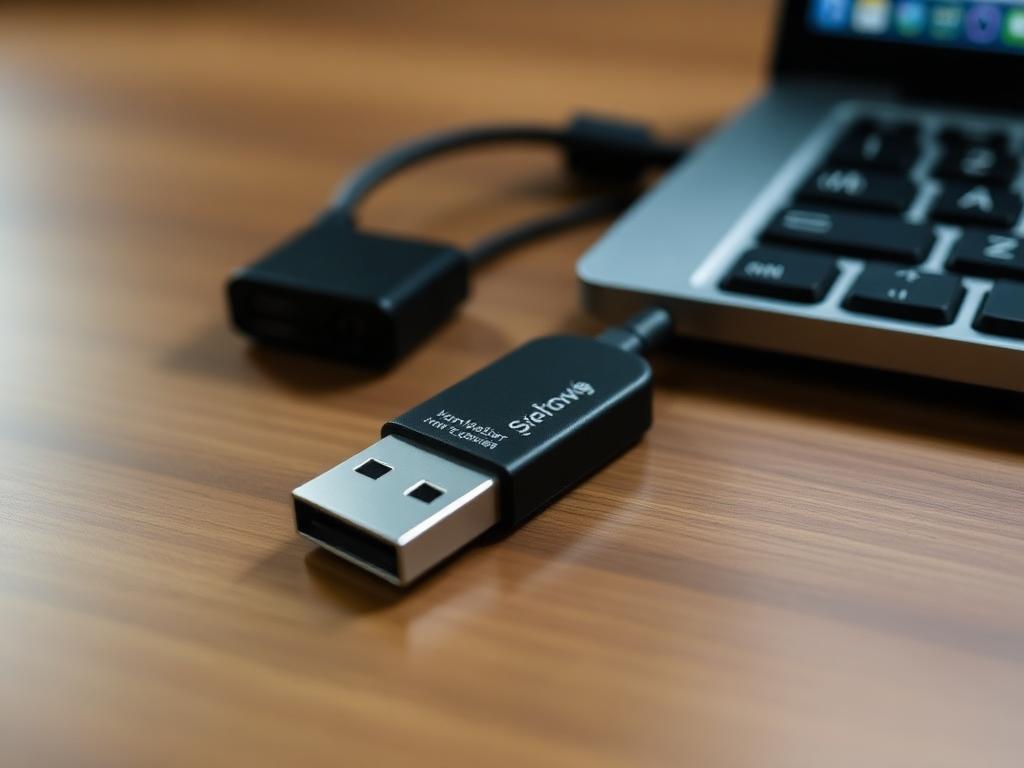
- Hardware security keys. Most secure. A small USB or NFC device that has to be physically present and touched to log in. Resistant to phishing.
- Authenticator apps. Strongly recommended. Apps generate a rotating 6 digit code locally on your device. Not vulnerable to SIM swaps.
- SMS codes. Better than nothing, but vulnerable to SIM swap attacks where an attacker convinces your carrier to redirect your phone number. Use only when no other option exists.
Step by step: set up an authenticator app
- Install Google Authenticator, Microsoft Authenticator, or Authy from your app store.
- Log into the account you want to secure on a computer.
- Go to Settings, then Security or Privacy.
- Select Two Factor Authentication or Login Verification.
- Choose Authenticator App as the method.
- Scan the displayed QR code with your authenticator app.
- Enter the 6 digit code the app shows back to the website to confirm.
- Save the backup codes the site provides.
Step by step: set up a hardware key
- Buy a hardware key like a YubiKey or Google Titan. Buy two so you have a backup.
- Log into your account, open Security settings, and choose Add Security Key.
- Insert the key into a USB port and tap the button when prompted.
- Repeat with your second key and store it somewhere safe like a fire box.
Backup codes: do not skip this step
Every 2FA service gives you a set of one time use backup codes. These are how you regain access if you lose your phone or your hardware key. Save them in three places.
- Print one copy and store it with your important documents.
- Save a copy in your password manager's secure notes feature.
- Take a screenshot and store it in an encrypted folder.
Do not save backup codes in plain text on your desktop or in an unsecured email folder.
The order to enable 2FA on your accounts
- Your primary email. Whoever controls your email can reset every other account.
- Your password manager. Controls every login you own.
- Your bank and financial apps. Highest direct financial impact.
- Cloud storage. Google Drive, iCloud, Dropbox, OneDrive.
- Social media. Twitter, Instagram, Facebook, LinkedIn.
- Work platforms. Slack, GitHub, AWS, Microsoft 365.
What happens if you lose your phone
This is the moment backup codes pay for themselves. Use a backup code to log in, disable the old 2FA method, then enrol a new device. If you stored your authenticator app in a service that syncs across devices, like Authy or 1Password, you can restore on a new phone without backup codes.
Common mistakes to avoid
- Using SMS 2FA on your phone carrier account itself. Use a hardware key or app there.
- Saving backup codes only in the cloud account they protect.
- Enrolling only one hardware key. Always buy and enrol a spare.
- Using the same authenticator app on a single device with no backup.
Phishing resistant 2FA: FIDO2 and passkeys
The newest generation of 2FA uses FIDO2 and passkeys, which bind the login to the specific website. Even a perfectly cloned phishing page cannot use them. Apple, Google, Microsoft, and most password managers now support passkeys. Where available, they are the strongest option and they remove the password from the equation entirely.
2FA on shared family accounts
For shared accounts like a family streaming service or a household bill login, enrol two phones rather than one. Most services allow multiple devices. If only one is allowed, use an authenticator app that syncs across both phones so either user can complete the second factor.
Frequently asked questions
Is SMS 2FA still better than no 2FA?
Yes. SMS 2FA blocks most opportunistic attacks. Use it if it is the only option, but switch to an app or key as soon as you can.
Do I need 2FA on every account?
Not every account, but every account that controls money, identity, communication, or other accounts.
What if my authenticator app is wiped?
Use the backup codes to log in, then re enrol on a new device. Switching to a syncing app like Authy or 1Password prevents this in future.
Can I use 2FA without a smartphone?
Yes. A hardware key works without a phone. Some sites also support email codes or printable one time codes as fallbacks.


