

Quick Answer
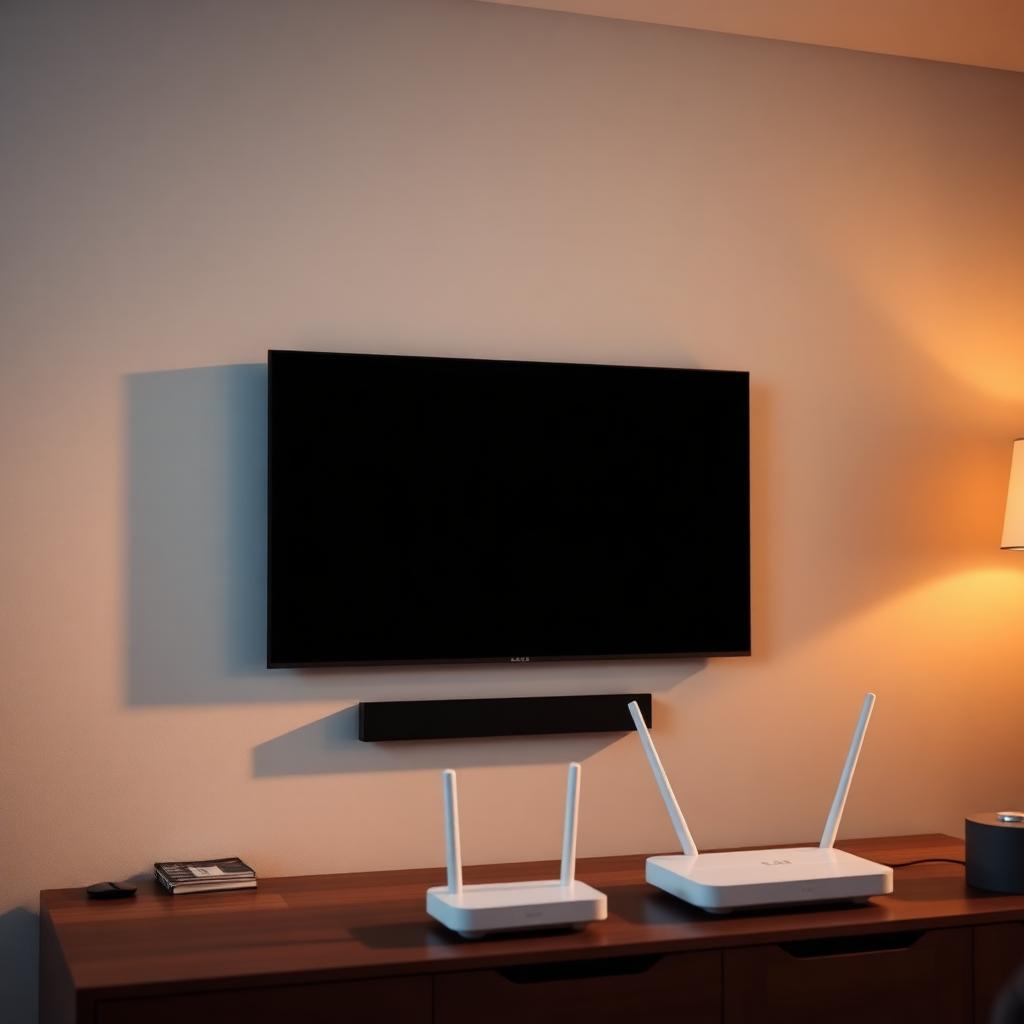
If your LG TV refuses to connect to Wi-Fi, unplug the TV from the wall, hold the physical power button for 30 seconds, wait one minute, and plug it back in. That single hard reset clears the most common webOS network bug.
If the screen says connected but no internet, change DNS to 8.8.8.8 inside Advanced Wi-Fi Settings and switch your Location Setting to your actual country.
Most owners are back online inside five minutes without a factory reset or a service call.
Why webOS drops Wi-Fi so often
LG Smart TVs run webOS, a custom operating system tuned for picture quality first and network stability second. The wireless module sits behind a small ribbon cable next to the main board, and the firmware keeps a cached network state in RAM that survives a normal remote shutdown.
That cache is also where most failures live. A bad handshake, a DNS lookup that times out, or a router that changed channel can corrupt the cache. Until you cut power to the board, the TV keeps reusing the broken state.
Step 1: the 60 second hard reset
Skip the remote. The remote only puts the TV in standby and standby does not flush the wireless cache.
- Pull the power cable straight out of the wall outlet.
- Find the physical power button on the bottom bezel under the LG logo.
- Hold that button for 30 full seconds to drain residual current from the internal capacitors.
- Leave the TV unplugged for at least 60 seconds.
- Plug back in, power on, and re-enter your Wi-Fi password.
This single procedure resolves the Wi-Fi turned off error roughly 70 percent of the time. If your TV reconnects cleanly, you are done.
Step 2: switch DNS to a public resolver
If the TV connects to the router but every app shows a network error, your ISP's DNS resolver is the bottleneck. webOS lets you override it from the network menu.
- Press Settings on the Magic Remote, then All Settings.
- Open General (or Network on newer models), then Wi-Fi Connection.
- Scroll to your active network, tap Advanced Wi-Fi Settings, then Edit.
- Uncheck Set Automatically.
- Clear the DNS field and enter 8.8.8.8 (Google) or 1.1.1.1 (Cloudflare).
- Tap Connect.
Public DNS resolvers are faster and more reliable than most ISP defaults and they keep working when your provider has a regional outage.
Step 3: fix the Location Setting
webOS uses the Location Setting to pick which content delivery server to talk to. If the value drifted to a wrong country during setup, every streaming app will time out even though Wi-Fi is technically connected.
- Settings, All Settings, General, Location.
- Set LG Services Country and Broadcast Country manually to your actual country.
- Reboot the TV from the menu.
Step 4: turn Quick Start Plus off
Quick Start Plus speeds up boot by keeping the system in a low power state instead of fully shutting down. It also keeps the broken Wi-Fi cache alive across reboots.
Open Settings, General, Additional Settings, and toggle Quick Start Plus to off. From this moment forward every power cycle becomes a real cold boot.
Step 5: move the router or switch to 2.4 GHz
The wireless chip in most LG TVs is mid range. If your router lives two rooms away or shares a channel with a busy neighbor, the connection will keep dropping.
- Run a free speed test from a phone placed next to the TV. If results swing wildly, the signal is the problem.
- Split your Wi-Fi into separate 2.4 GHz and 5 GHz SSIDs and join the TV to the 2.4 GHz band. It is slower but it reaches further and survives interference better.
- If you have a mesh network, add a satellite node within 15 feet of the TV.
Step 6: clean install of webOS
If nothing else works, run a full factory reset from Settings, General, Reset to Initial Settings. This wipes every app, every login, and every cached network profile. After the reboot, re-add your Wi-Fi from a clean slate. Reserve this step for last because you will have to re-enter every streaming app password.
When it is the hardware
If your TV still cannot see any Wi-Fi network after a factory reset, the internal wireless ribbon cable may have come loose during shipping or a wall mount. That is a service center fix, not a DIY job. Call LG support with your model number ready.
The takeaway
Almost every LG TV Wi-Fi failure is a cached state bug or a DNS issue, not a hardware fault. Run a true hard reset, switch DNS to 8.8.8.8, lock your Location Setting, and turn Quick Start Plus off. That four step recovery brings the vast majority of webOS sets back online without a single trip to the menu's reset option.
Frequently Asked Questions
Why does my LG TV say Wi-Fi is turned off?
It usually means the cached wireless state has corrupted. A 60 second hard unplug with the physical power button held down clears it.
Will a factory reset fix LG TV Wi-Fi issues?
Yes for software faults. It will not fix a loose internal antenna ribbon or a weak signal at the TV location.
Is 2.4 GHz or 5 GHz better for an LG TV?
5 GHz is faster but 2.4 GHz reaches further and copes with obstacles better. If your router is across the house, 2.4 GHz is the safer pick.
Does Quick Start Plus really cause Wi-Fi problems?
It can. Quick Start Plus skips the cold boot that would flush the wireless cache. Disabling it makes every shutdown a true reboot.


