

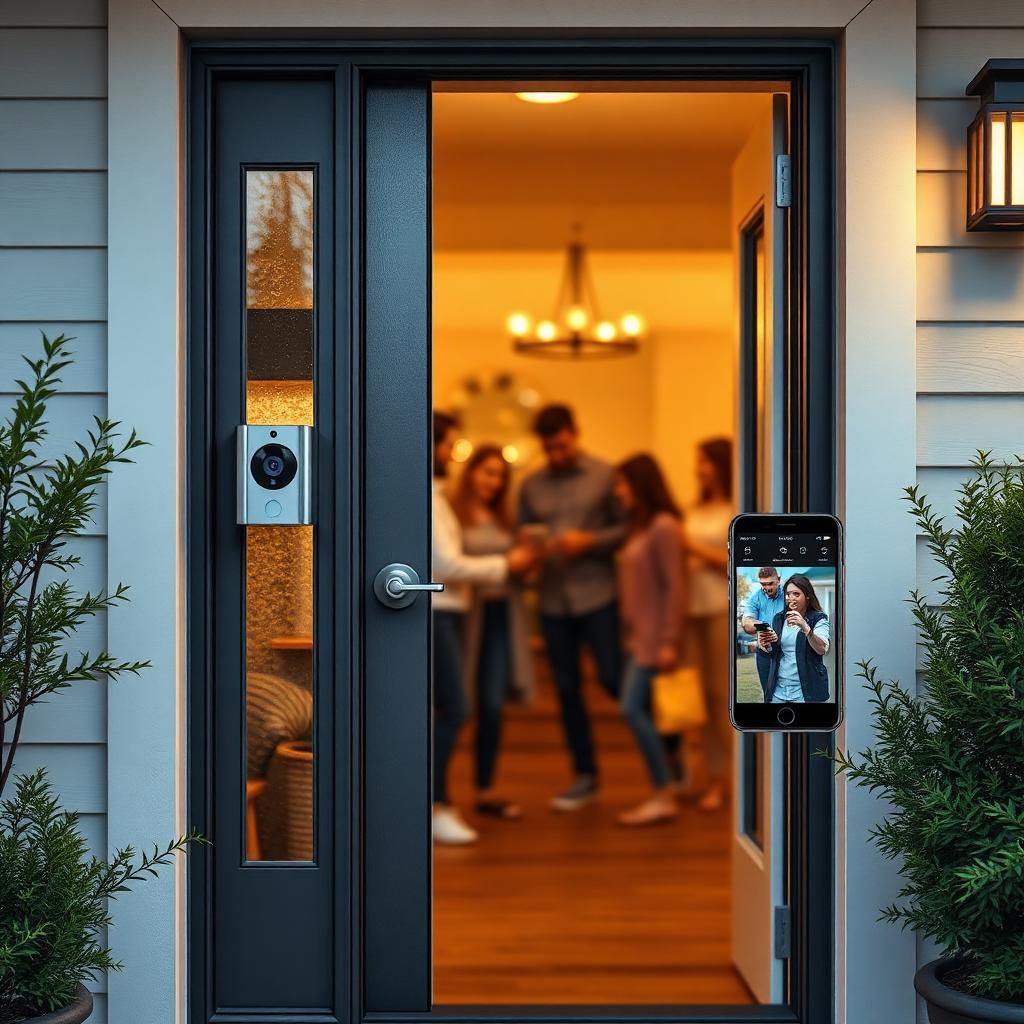
Quick Answer
Open the Ring app, tap the menu icon, then Settings, then Shared Access, then Add User. Pick Shared User as the role, enter the recipient's email, and check the specific cameras you want them to see.
Shared users can view live feeds, answer doorbells, and toggle their own notifications. They cannot delete devices, change subscriptions, or remove other users.
Every shared user needs their own free Ring account before the invite link will work.
Why shared users beat shared passwords
The wrong way to share a Ring camera is to give a family member your email and password. That hands them billing access, lets them delete recorded events, and breaks Ring's two factor authentication on every new login.
The right way is the built in shared user system. Each invited person gets their own Ring account, signs in on their own phone, and operates inside a sandbox you control. You can revoke their access in two taps without changing your own password.
Role comparison
Ring has three account roles. Knowing the limits of each is the whole point of this guide.
- Owner: full control. Edit devices, edit subscriptions, add or remove users, delete history.
- Shared User: live view, two way talk, motion alerts, history view for the cameras you grant. No billing, no device removal.
- Guest User: time limited access to Ring Alarm only, no cameras. Useful for cleaners and house sitters.
Step by step: inviting a shared user
- Open the Ring app on your phone.
- Tap the three line menu at the top left, then Settings.
- Tap Shared Access, then the plus icon for Add User.
- Pick Shared User from the role list.
- Enter the recipient's exact email. It must match the email on their existing Ring account.
- On the device selection screen, check only the cameras and doorbells you want them to access. Leave indoor or bedroom cameras unchecked for privacy.
- Tap Send Invite.
The invite expires after seven days if the recipient does not accept it.
What the recipient sees
The invited person gets an email from Ring with a confirmation link. Opening it in their phone's browser launches the Ring app, prompts them to log in to their own account, and asks them to accept access.
After accepting, the shared cameras appear inside their Devices tab as if they were their own. They can name them, mute their alerts, or rearrange the order.
Per device privacy: what stays private
Shared users cannot see any device you left unchecked during the invite. They also cannot see any recorded clip that was already in your timeline before the access was granted. Their history view starts from the moment they accept.
What shared users can do
- Open live view on any granted camera at any time.
- Answer the doorbell when you are unavailable.
- Receive push notifications when motion or a doorbell press happens, but only if they enable alerts on their own phone.
- Use two way audio to speak to a visitor.
- Save or share individual clips inside Ring Protect.
- Toggle motion zones on or off if they have Ring Protect.
What shared users cannot do
- Delete recorded events from history.
- Remove or add devices.
- Edit the home Wi-Fi network.
- Add or remove other shared users.
- Change the Ring Protect subscription or billing card.
- Arm or disarm Ring Alarm at the Disarmed or Away level (that needs the Guest or higher role on the alarm side).
Revoking access in two taps
- Settings, Shared Access.
- Tap the name of the user.
- Tap Remove User.
The shared cameras disappear from their app instantly. No password change is needed on your side.
Edge cases worth knowing
- If you add a new camera later, you must go back into Shared Access and grant access for that specific device. Existing shared users do not get new cameras automatically.
- You can have up to 10 shared users per location.
- Family members in another household need to log in with their own Ring account. They cannot share your password and also have a personal shared account on the same email.
- Ring Protect coverage extends to shared users. They can review recorded clips for the same retention window you pay for.
The takeaway
The Ring shared user system gives family the access they actually need without the security risk of password sharing. Pick the cameras carefully, leave indoor zones unchecked, and revoke access the moment a roommate moves out. The whole system is designed so the owner stays in control no matter how many people you invite.
Frequently Asked Questions
Can a shared user delete my Ring footage?
No. Only the account owner can delete recorded clips.
Do shared users need to pay for Ring Protect?
No. They inherit the owner's subscription level for any camera you share with them.
How many shared users can I add?
Up to 10 per location.
What happens if I delete a shared user?
The shared cameras vanish from their app instantly. They keep their own Ring account and any cameras they own personally.


