

Quick Answer
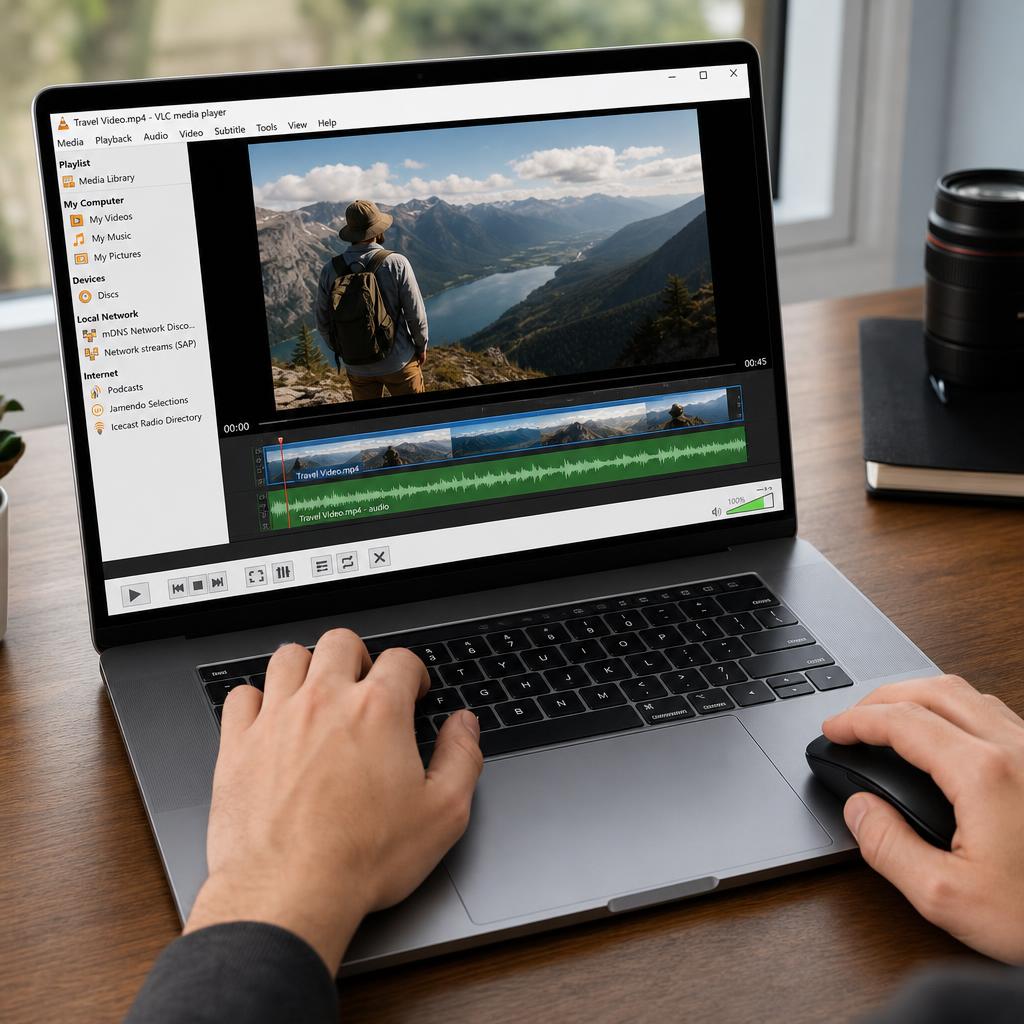
To trim a video in VLC Media Player, enable View, Advanced Controls to reveal the red record button. Open your source file, pause at the exact start point, click record, press play, then click record again at the end point. VLC saves the trimmed clip automatically into your Videos folder with a vlc-record prefix.
No re-encoding, no settings, no software install beyond VLC itself.
Why VLC is a hidden video editor
VLC Media Player by VideoLAN is the universal media player, famous for playing almost any file format without extra codecs. Most users treat it as a passive viewer and never notice the built-in capture tools. If you need to extract a 15-second clip from a 2-hour family video or save a highlight from a lecture, you do not need DaVinci Resolve or Premiere. The trim happens entirely inside VLC and the export is lossless because nothing is re-encoded.
Step overview
| Step | What to click |
|---|---|
| Enable editing tools | View, Advanced Controls |
| Open source video | Media, Open File |
| Cue the start point | Scrub timeline, pause |
| Capture the clip | Click red record, press play, click record again |
| Find the file | Default Videos folder, named vlc-record |
Step 1: Unlock Advanced Controls
VLC hides its editing tools by default to keep the playback window clean.
- Open VLC.
- Click the View menu at the top.
- Click Advanced Controls.
A new row of four buttons appears above the standard play and pause row, anchored by a bright red circular Record button. The other three are Take Snapshot, Loop A to B, and Frame by Frame.
Step 2: Open your source video
Click Media in the top left, choose Open File, and select the video you want to trim. Drag the timeline scrubber to the moment your clip should begin. Use the Frame by Frame button on the new toolbar to nudge forward one frame at a time for precise cuts, then press Pause exactly on the starting frame.
Step 3: Record the segment
With the video paused at your start frame, click the red Record button once. The button stays visually pressed, meaning the capture engine is armed.
Press the standard Play button. Let the video roll in real time until it reaches the exact frame where your clip should end, then click the red Record button a second time to stop. VLC closes the capture silently with no dialog box.
Note: VLC records in real time, so a 30-second clip takes 30 seconds to capture. If you want a long trim, plan for it.
Step 4: Locate your trimmed clip
VLC writes the captured file into the operating system's default Videos folder:
- Windows:
C:UsersYourNameVideos - macOS:
/Users/YourName/Movies - Linux:
~/Videos
Look for a file beginning with vlc-record and the current timestamp. The format matches the source (MP4 stays MP4, MKV stays MKV), and the quality is identical because VLC stream-copies instead of re-encoding.
Alternate method: convert with a precise start and stop
If you want frame-accurate cuts without recording in real time, use the Convert dialog:
- Click Media, Convert / Save.
- Add your source file.
- Click Show more options and tick Start Time. Enter your start in seconds.
- Click Convert / Save, choose a profile (Video for H.264 + MP3 in MP4 is safe), and set a destination filename.
- Click Start. VLC processes the file silently in the background.
This route re-encodes the video and is slightly slower, but you control exact start and end times down to the second instead of clicking record live.
Troubleshooting
If clicking Record does nothing, check Tools, Preferences, Input / Codecs, and confirm a record directory is set. If the file appears as 0 KB, your output folder might be read-only or the source codec is not seekable. Switch to the Convert method above for those edge cases.
Takeaway
VLC is more than a media player. The Advanced Controls record button gives you a true lossless trim feature in three clicks, and the Convert dialog adds frame-accurate cuts when you need them. There is rarely a reason to install a dedicated editor for a quick clip.


