

Quick Answer
For a working Chromecast, open the Google Home app, tap your Chromecast, tap the gear icon for Settings, tap the three dot menu, and choose Factory reset.
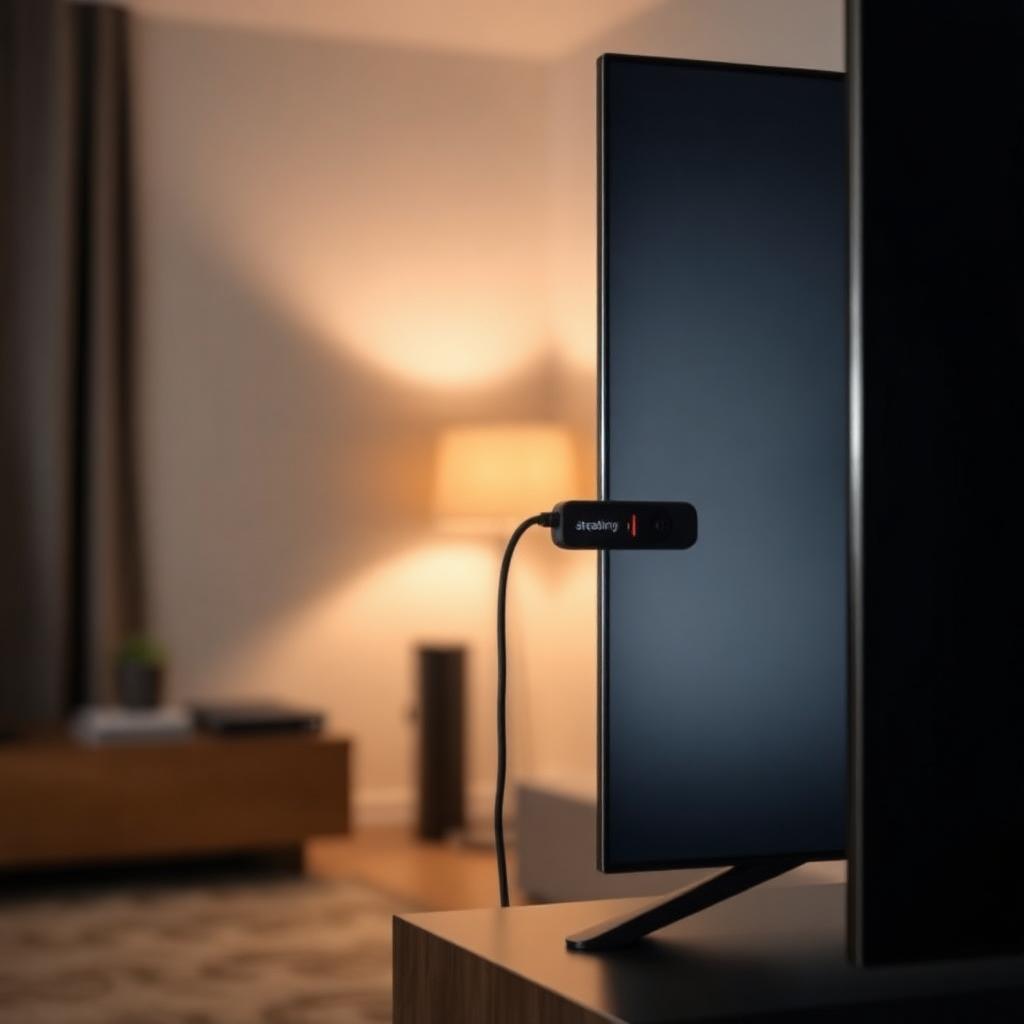
For a frozen or unreachable Chromecast, hold the single physical button on the side of the dongle for 25 seconds while it is plugged into the TV and powered. The LED blinks then turns solid white when reset is complete.
A factory reset removes all account links, Wi Fi credentials, and personalisation. You will need to re run setup with the Google Home app.
When a reset actually helps
- Chromecast keeps dropping Wi Fi. Stored credentials can corrupt; a reset clears them.
- Apps will not cast or freeze mid playback. Often a stale firmware state that a reset clears.
- Switching the Chromecast to a different account. Sell or hand down the device.
- New router or new Wi Fi password. Easiest to start fresh rather than chase a partial config.
- Display shows a Welcome screen with no controls. A reset usually restores the home screen.
Method 1: reset from the Google Home app
This is the cleanest method when the Chromecast is still responsive on Wi Fi.
- Open the Google Home app on the phone or tablet that originally set up the device.
- Tap the Chromecast tile from the main screen.
- Tap the gear icon in the top right to open Settings.
- Tap the three dot menu in the top right of Settings.
- Choose Factory reset.
- Confirm.
The Chromecast restarts and shows the welcome screen within a minute.
Method 2: hardware button reset
Use this when the Chromecast is frozen, off Wi Fi, or unresponsive.
Chromecast (1st, 2nd, 3rd gen) and Chromecast Ultra
- Keep the Chromecast plugged into the TV and powered via USB or wall adapter.
- Locate the single small button on the side of the dongle.
- Press and hold the button for about 25 seconds.
- The LED light starts flashing amber or orange.
- Release when the LED turns solid white. The device reboots and shows the welcome screen.
Chromecast with Google TV (HD and 4K)
- Power on the Chromecast and ensure the TV is on the correct HDMI input.
- On the back of the device, locate the single button.
- Press and hold the button. The LED on the front of the device starts blinking.
- Continue holding for about 10 seconds, until the screen shows a reset confirmation or the LED turns solid.
- Release. The device reboots into the welcome flow.
Method 3: reset from the device itself (Chromecast with Google TV only)
If the menu still responds, the cleanest reset on Chromecast with Google TV is through the on screen settings.
- From the home screen, navigate to your profile icon in the top right.
- Choose Settings.
- Scroll to System, then About.
- Select Factory reset and confirm.
What a reset removes
- All Wi Fi network credentials.
- The Google account link.
- App login states (Netflix, YouTube, Disney Plus, etc).
- Ambient mode and personalisation settings.
- Voice training data for Google Assistant on Chromecast with Google TV.
It does not damage the device or affect firmware updates already installed; firmware stays at the latest version.
After the reset: re run setup
- Open the Google Home app on your phone.
- Tap the plus icon, then Set up device, then New device.
- Choose your home, and the app scans for nearby Chromecasts.
- Confirm the four character code on the TV matches the app.
- Choose your Wi Fi network and sign in to your Google account.
- Install the apps you want to cast to (Netflix, YouTube, etc).
Troubleshooting after a reset
- Chromecast cannot find Wi Fi: stand within 15 feet of the router, restart the router, and try again.
- Setup hangs at 99 percent: usually a Wi Fi handoff issue. Reboot phone and Chromecast, then retry.
- Cast button does not appear in apps: ensure the phone and Chromecast are on the same Wi Fi network.
- HDMI no signal: try a different HDMI port and confirm the TV input matches.
- Repeated freezes after reset: the power supply may be undervolted. Use the original Google adapter rather than a TV USB port, which often does not deliver enough current.
FAQs
Will a reset fix a Chromecast that overheats?
No. Overheating is a hardware airflow issue. Move the dongle out from behind the TV using the included HDMI extender, or replace it if the housing cracks open.
Can I reset a Chromecast without the Google Home app?
Yes. The hardware button method works without any phone or app.
Do I need to reset before selling my Chromecast?
Yes. Always factory reset to remove your Wi Fi credentials and Google account link before handing the device to anyone.
Why does the LED stay solid yellow after reset?
The device is in pairing mode waiting for setup. Open the Google Home app on your phone to complete the process.
The takeaway
Two reset paths: app for responsive units, 25 second button hold for frozen ones. Re run setup with the Google Home app, and the Chromecast usually behaves for months before another reset is needed.


