

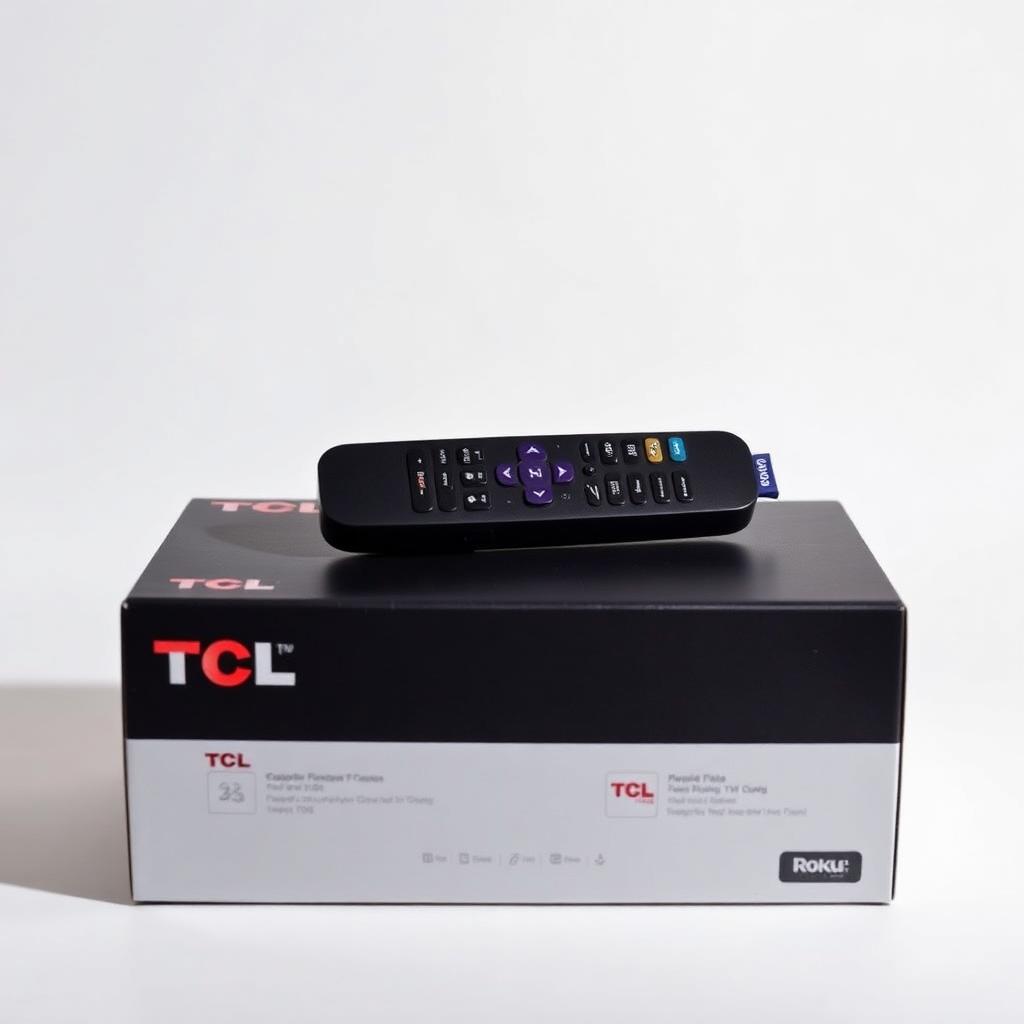
Quick Answer
To pair a TCL Roku remote to a new TV, first identify the remote type. A basic Standard IR remote needs no pairing: install batteries, point at the TV, and it works through factory programmed codes. An Enhanced Wi-Fi Voice remote (the one with a microphone button) needs a software handshake: unplug the TV for 60 seconds, plug it back in, then hold the small pairing button inside the battery bay for 3 seconds until the LED blinks. A pairing dialog appears on the TV in 30 to 45 seconds.
If the dialog never appears, reset the TV's network connection from the Roku Mobile App and try the bay button again.
Step 1: Identify your TCL Roku remote
TCL ships two distinct remote families across the Roku TV lineup. Which one you have determines the entire setup process.
| Feature | Standard IR Remote | Enhanced Voice Remote |
|---|---|---|
| Line of sight needed | Yes, clear path to the TV sensor | No, works through walls and cabinets |
| Pairing button | None | Small button inside the battery bay |
| Voice search key | Absent | Microphone or magnifying glass icon |
| Headphone jack | None | Present on premium Voice Pro models |
| Powered by | 2x AAA | 2x AAA or rechargeable battery |
Step 2: Standard IR remote (no pairing needed)
If your remote has no microphone and no pairing button, it is a factory programmed IR remote.
- Install fresh AAA alkaline batteries.
- Peel off any clear protective film still stuck to the bottom bezel of the TV.
- Point the remote directly at the IR sensor (usually centered at the bottom of the frame).
- Press Power. The TV should respond instantly.
If nothing happens, the issue is dead batteries, corroded battery terminals, or the TV's IR receiver module. There is no software pairing step to perform.
Step 3: Enhanced Voice remote pairing
The voice remote uses Wi-Fi Direct, an encrypted point to point handshake that needs both devices to negotiate a session key.
- Turn off the TV and unplug the power cord. Leave it disconnected for a full 60 seconds. This dumps the system cache and resets the Wi-Fi Direct stack.
- Install fresh AAA batteries in the remote but leave the battery door off so you can reach the pairing button.
- Plug the TV back in and power it on with the physical button. Wait for the Roku home screen to fully load.
- Locate the small circular pairing button inside the battery bay, usually next to or below the batteries.
- Press and hold the pairing button for 3 full seconds. The status LED on the front begins flashing.
- A pairing dialog appears on the TV. Setup takes 30 to 45 seconds.
Once paired, close the battery door. The remote keeps the pairing key in non volatile memory and reconnects automatically on every power on.
If the pairing dialog never shows up
The TV's internal Wi-Fi chip may be stuck on a saturated channel. Use the free Roku Mobile App to reset it.
- Install the Roku Mobile App on a phone connected to the same Wi-Fi as the TV.
- Open the app, select your TV, and tap the remote icon.
- Navigate to Settings, System, Advanced System Settings, Network Connection Reset.
- The TV reboots and clears its wireless cache.
- Repeat the physical pairing button workflow.
Replacing a lost or broken remote
Genuine TCL replacement remotes are listed by Roku model code (RC580, RC282, RC902V, etc.). Check the inside of the battery bay on any working remote you still have. If you only have the TV, check the back of the chassis for the TCL model number and search "compatible Roku remote" for that model. Stay with genuine Roku certified units, since fully compatible voice remotes need the correct Wi-Fi Direct firmware.
Common pairing problems
- Mixed battery brands: Different cells deliver different voltages and confuse the radio. Always use a matched pair.
- Router congestion: If your Wi-Fi router is set to a fixed 2.4 GHz channel that is already saturated, the pairing handshake can drop. Set the router to "Auto" channel and try again.
- Old firmware: A TV that has not connected to the internet in months may be running outdated firmware. Connect via Ethernet temporarily to force a system update before pairing the remote.
Frequently asked questions
Can I use any Roku remote with a TCL Roku TV?
Most enhanced Roku remotes work across the Roku platform, regardless of brand. A Roku Express remote often pairs with a TCL Roku TV after a normal pairing button press. The exception is the Voice Remote Pro with charging dock, which is restricted to compatible Roku player models, not all TVs.
Why does the new remote work but the old remote stopped after pairing?
A Roku TV can pair to multiple remotes, but Wi-Fi Direct's session key sometimes gets reissued during a new pairing, which kicks the old remote off. Repeat the pairing button workflow on the old remote to bring it back as a second controller.
Do I need an internet connection to pair the remote?
No. The Wi-Fi Direct pairing between the TV and the voice remote is local and does not need internet. Once paired, internet is only required for voice search and app updates.
The remote pairs but the headphone jack volume is too quiet. Why?
Roku caps the headphone jack output to a default level. Increase it in Settings, Audio, Volume Modes, Headphones.
How do I factory reset just the remote, not the TV?
Pull the batteries, press and hold the pairing button for 20 seconds, reinstall batteries, and re-pair from scratch. The TV configuration is untouched.
The takeaway
Identify the remote first. Standard IR remotes just need batteries and a clear line of sight. Enhanced voice remotes need a 60 second TV power cycle, then a 3 second press on the pairing button inside the battery bay. If the on screen dialog never appears, reset the TV network from the Roku Mobile App and try the button again. Genuine Roku certified replacements run $15 to $30 if the original remote is truly dead.


