

Quick Answer
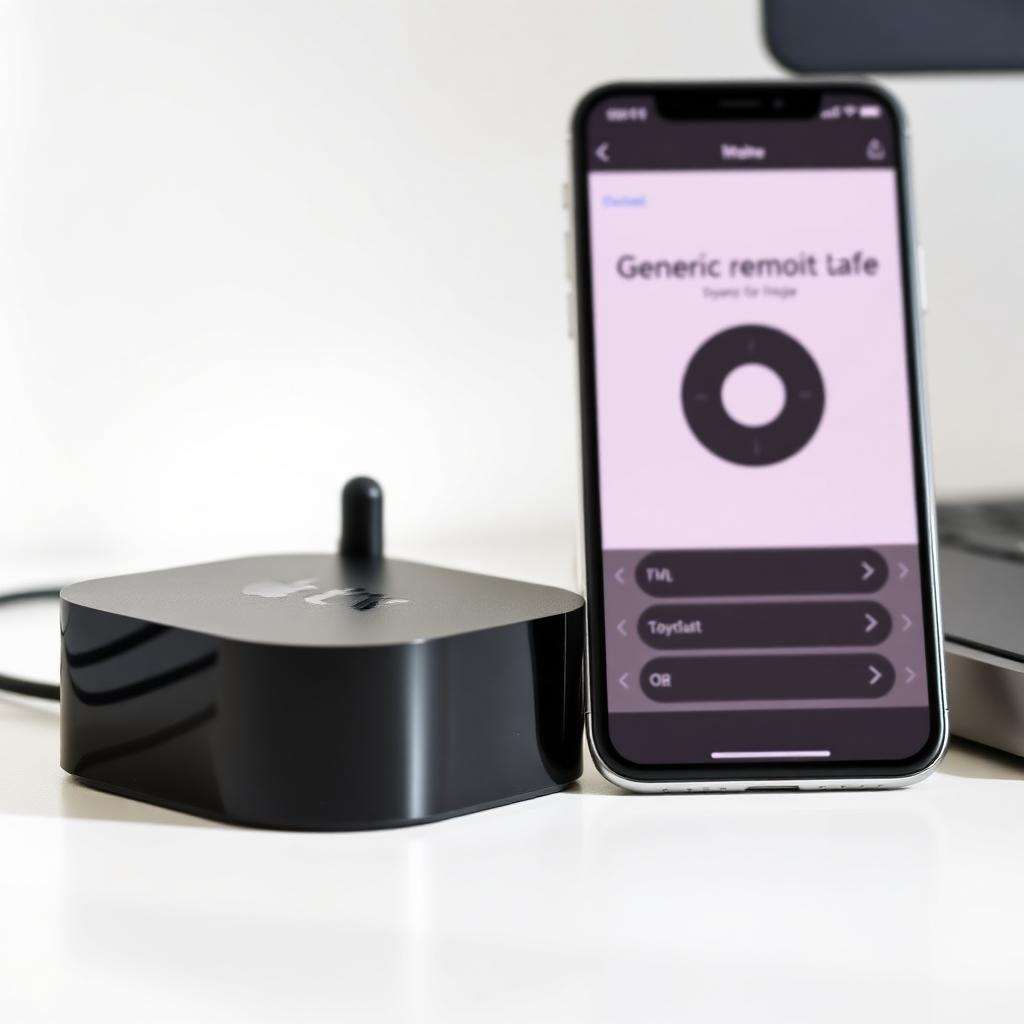
If you lost the Siri Remote and the Apple TV is not on Wi-Fi yet, the iPhone Apple TV Remote in Control Center cannot see it. There are two reliable workarounds.
Method 1 (easiest): plug an Ethernet cable from the Apple TV directly into your home router. The Apple TV now appears on the local network and your iPhone's built in Apple TV Remote can pair to it. Use the phone to enter the Wi-Fi password, then remove the cable.
Method 2 (no router available): rename your iPhone Personal Hotspot to exactly match the SSID and password the Apple TV was last connected to. The Apple TV auto reconnects to the hotspot, you control it from your phone, and you can then update its Wi-Fi to a new network.
Why this happens
The Apple TV needs to be on the same local network as your iPhone before the iOS Apple TV Remote can find and pair to it. The phone uses Bonjour over the local network for discovery, not Bluetooth. When the Apple TV has never been online (new install, travel, hotel) or was wiped, the phone has nothing to discover. Without a physical remote, you cannot tap your way into the Settings, Network screen to type a new Wi-Fi password.
Method 1: Ethernet temporary bypass
This is the cleanest fix when you have access to a router and any Ethernet cable.
- Plug one end of an Ethernet cable into the back of the Apple TV. All Apple TV HD and 4K models have a Gigabit Ethernet port.
- Plug the other end into any free LAN port on your home router.
- Make sure your iPhone is on the same router's Wi-Fi.
- Wait 15 seconds. The Apple TV registers on the local network over wired Ethernet instantly, no Wi-Fi password needed.
- Open Control Center on iPhone (swipe down from the top right). Tap the Apple TV Remote icon and pick your Apple TV.
- Use the on screen remote to go to Settings, Network, Wi-Fi, pick the network and type the password.
- Unplug the Ethernet cable. The Apple TV stays on the Wi-Fi and the iPhone remote keeps working.
Method 2: Personal Hotspot SSID mirror trick
If you do not have access to a router (hotel, Airbnb, friend's house), make your iPhone pretend to be the Apple TV's last known network.
FIND OLD SSID -> RENAME HOTSPOT -> SET MATCHING PASSWORD
-> APPLE TV AUTO RECONNECTS- Remember the exact Wi-Fi name and password the Apple TV was last connected to (your home network is usually it).
- On iPhone, go to Settings, General, About, Name. Rename the phone to match the old Wi-Fi SSID exactly (case sensitive).
- Go to Settings, Personal Hotspot. Tap Wi-Fi Password and set it to the old home Wi-Fi password.
- Toggle Personal Hotspot on. Make sure Allow Others to Join is enabled.
- Power on the Apple TV. Within 30 seconds it auto reconnects to what it thinks is your home network.
- Open Control Center on iPhone and pick the Apple TV Remote. You can now navigate the menus and add the local Wi-Fi network properly.
Method 3: Pair a third party Bluetooth keyboard
If both methods above fail, any standard Bluetooth keyboard pairs with an Apple TV via the built in pairing wizard on first power on, with arrow keys for navigation and Enter for select. This works even on a fresh out of the box Apple TV that has never seen a network.
What does not work
- Generic IR universal remotes: Apple TV 4K models removed the IR receiver. Only the original Apple TV 3 supports IR remotes.
- Bluetooth headphones, AirPods: They pair but cannot navigate the UI.
- Android phone apps: Apple TV discovery requires Bonjour and Apple's MFi handshake. Android has no native equivalent.
Buying a backup remote
If you travel often, keep a spare. Apple sells the Siri Remote separately for around $59. Several third party MFi certified remotes (Function101, Salt Remote) are $20 to $35 and work identically.
Frequently asked questions
Will the Apple TV Remote in iOS Control Center see an Apple TV connected only by Ethernet?
Yes. The discovery uses Bonjour over the local network. Ethernet counts as the same local network as the Wi-Fi the iPhone is on, as long as both go through the same router.
Does the SSID mirror trick work on a hotel Wi-Fi that needs a captive portal login?
No. Hotel networks with captive portals reject the Apple TV because tvOS cannot pop a browser to accept terms. Use the Personal Hotspot SSID mirror approach instead, which bypasses the captive portal entirely.
Can I use a Bluetooth game controller as a substitute remote?
Limited. The PS5 DualSense and Xbox Series controllers pair with Apple TV and can navigate games, but tvOS does not map them to the system UI navigation. A Bluetooth keyboard is the reliable substitute.
What if I forgot the old Wi-Fi password?
The SSID mirror only works if the password matches exactly. If you cannot remember the old password, the Ethernet method is the only path forward.
Will an Apple TV 4K from 2017 still work with this trick?
Yes. Every Apple TV HD and 4K model has a Gigabit Ethernet port and supports the iOS Control Center remote.
Long term backup planning
The cleanest insurance against ever being remote-less is to set up the iOS Apple TV Remote in Control Center before you need it. On any iPhone running iOS 12 or newer, swipe down from the top right corner, tap the Apple TV Remote icon, and pair it once while your Apple TV is on Wi-Fi. The pairing key lives on the iPhone permanently. The next time you misplace the Siri Remote at home, the iPhone remote works instantly with no setup.
For travel, pack a USB-C to Ethernet adapter (about $15) and a 6 foot Ethernet cable in the same bag as your Apple TV. The combo weighs almost nothing and turns any hotel room with an Ethernet wall jack into a working Apple TV setup environment. If your iPhone supports Hotspot SSID mirroring (any iPhone running iOS 13 or newer does), the second method is always available as a fallback. Combining both methods means you can never get fully locked out of an Apple TV, even on a fresh out of the box unit at a remote location.
The takeaway
Two tricks bring an Apple TV back to life without its remote. With a router on hand, plug in Ethernet, pair the iPhone remote, type the Wi-Fi password, then remove the cable. Without a router, rename the iPhone Personal Hotspot to match the Apple TV's last known SSID and password, and the Apple TV auto reconnects. A Bluetooth keyboard is the safety net for a fresh, never online unit. Apple TV 4K dropped IR, so universal remotes are not an option.


