

Quick Answer
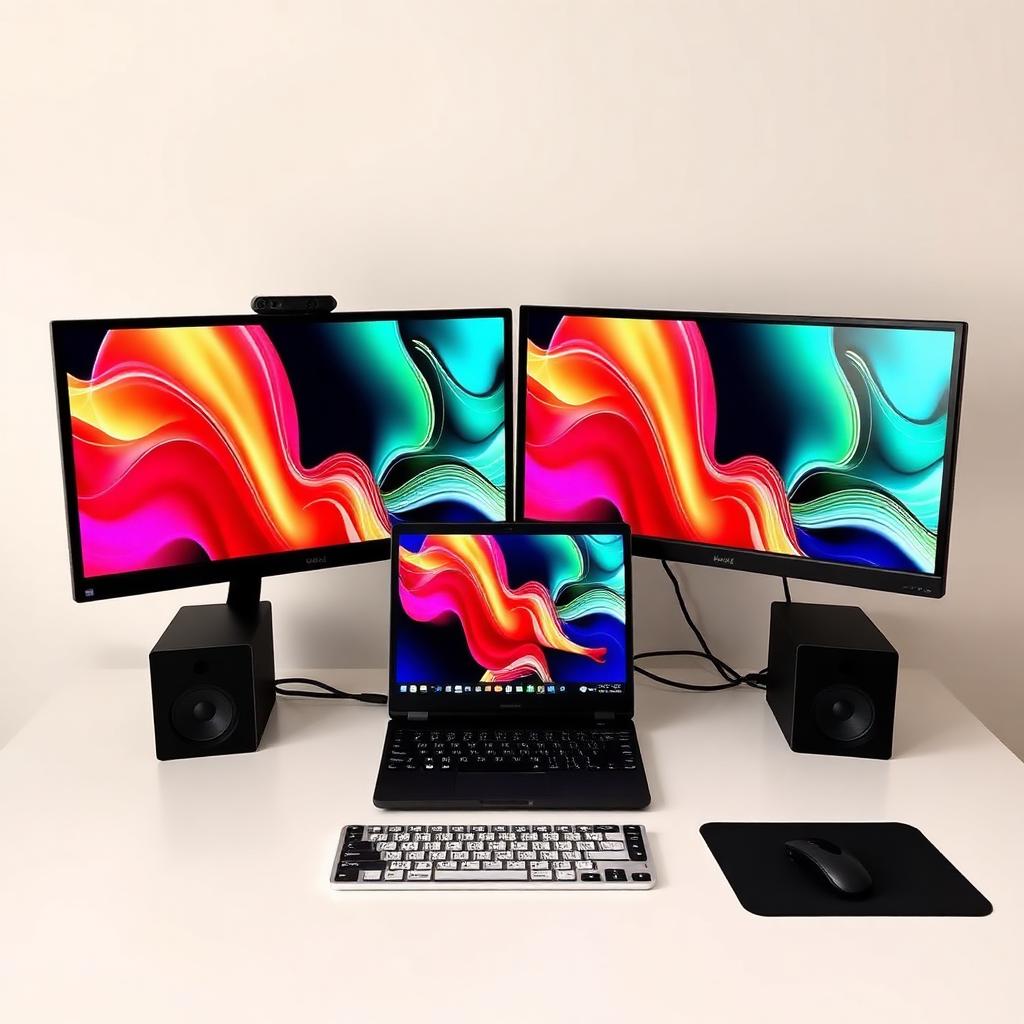
Identify the video output ports on your computer (HDMI, DisplayPort, USB C, Thunderbolt). Match each monitor to a port using the right cable. Plug everything in. Open Display Settings on Windows or System Settings, Displays on Mac. Choose Extend (not Duplicate) and drag the monitor icons to match the physical arrangement.
If your laptop has only one video output, use a USB C dock or a Thunderbolt hub to drive both monitors through a single cable.
Most modern laptops (2022 and later) can drive two external monitors natively. Some integrated graphics chips on older laptops cap at one external display, in which case a DisplayLink USB adapter is the workaround.
Why dual monitors pay off
Productivity research consistently shows 20 to 30 percent task speed gains when users move from one to two monitors. The wins come from having reference material visible alongside the active work, eliminating the constant Alt Tab cycle.
Typical layouts that benefit:
- Code on one screen, browser or terminal on the other.
- Spreadsheet on one, source data PDF on the other.
- Video call on one, slides or notes on the other.
- Email and chat on one, the active project on the other.
Step 1: inventory your ports
Look at the back of your desktop or the sides of your laptop. The common video output ports:
- HDMI: trapezoidal connector, supports up to 4K at 60 Hz on HDMI 2.0, up to 4K at 120 Hz on HDMI 2.1.
- DisplayPort: rectangular with one notched corner, supports up to 4K at 120 Hz on DisplayPort 1.4, 8K on 2.1.
- USB C (DisplayPort Alt Mode): the small reversible oval, drives a monitor over a single cable if the host supports video out.
- Thunderbolt 3 or 4: same physical USB C connector, drives up to two 4K monitors via a single cable.
- Mini DisplayPort: older Mac and PC laptops; use an adapter to standard DisplayPort or HDMI.
- VGA or DVI: legacy ports on older equipment; works but limited to 1080p and lower refresh rates.
Step 2: count your monitor inputs
Each monitor has its own set of input ports. Look at the back panel and match what is available to your computer s outputs.
If the monitor has DisplayPort and HDMI but your computer only has HDMI, you can still connect with an HDMI cable. The monitor s extra input is just a backup.
Step 3: pick the right cable
The cable bridges the computer output to the monitor input. Common combinations:
- HDMI to HDMI: the universal default.
- DisplayPort to DisplayPort: best for high refresh rate gaming and 4K plus.
- USB C to HDMI or DisplayPort: for laptops with USB C output and monitors with traditional inputs.
- USB C to USB C: single cable, often carries power back to the laptop too (90 W or more is typical).
- HDMI to DisplayPort or vice versa: active adapters work; avoid cheap passive adapters, which often fail at high resolutions.
Step 4: drive two monitors from one laptop port
Modern thin laptops often expose only one or two video outputs. To run two external monitors:
- Thunderbolt 4 dock: supports two 4K displays at 60 Hz over a single Thunderbolt cable. Brands like CalDigit, Anker, and Kensington are well reviewed.
- USB C DisplayPort 1.4 with MST: compatible monitors can daisy chain (monitor A connects to laptop, monitor B connects to monitor A). MST is not supported on Mac.
- DisplayLink USB 3 adapter: drives extra displays via software encoding. Slightly higher latency than native, but the only solution for older Macs or laptops with integrated graphics that cap at one external display.
Step 5: arrange the displays in Windows
- Right click an empty area of the desktop and choose Display settings.
- Scroll to the top to see numbered boxes representing each monitor. Click Identify to flash each monitor s number on screen.
- Drag the boxes to match the physical layout on your desk.
- Set the main display by selecting it and ticking Make this my main display.
- Under Multiple displays, choose Extend these displays (not Duplicate, which mirrors the same content).
- Adjust scale per display (125 or 150 percent often works better than 100 percent on 4K screens).
Step 6: arrange the displays on macOS
- Open System Settings, then Displays.
- Click Arrange.
- Drag each monitor s thumbnail to match the physical desk layout.
- Drag the white menu bar to the monitor you want as the primary.
- Confirm Mirror Displays is unchecked (the default for new connections).
- Adjust scaled resolution under each display individually.
Troubleshooting
- Second monitor not detected: swap the cable, try a different port on the computer, and check that the monitor input is set correctly (most monitors auto detect, but some need manual selection in their on screen menu).
- Resolution too low: the cable or port may not support the monitor s native resolution. Use DisplayPort or a current generation HDMI cable for 4K.
- Flickering or black screen: usually a refresh rate mismatch. In Windows Advanced Display, set the refresh rate to match the monitor s native value.
- Apps open on the wrong screen: drag them to the right monitor and close while they are there; most apps remember last position.
- Touch and pen registration off: on Windows, run Tablet PC Settings, Setup, and tap the displays in order to associate inputs.
Productivity wins after the setup
- Snap layouts: Windows 11 (Win plus Z) and macOS (hold green button) both offer split window presets to fill screens quickly.
- Virtual desktops: combine dual monitors with multiple virtual desktops for project specific layouts.
- Window managers: Rectangle (Mac), PowerToys FancyZones (Windows) automate snapping.
- Move taskbar: in Windows 11 right click the taskbar to choose which monitor it appears on.
FAQs
Can I use a TV as a second monitor?
Yes, via HDMI. The picture works, but TVs have higher input lag than monitors. Fine for video and reference, less ideal for fast paced work.
Do I need to match the two monitors?
No. Different sizes, resolutions, and refresh rates work fine. The OS handles per display scaling.
Will running two monitors slow my computer?
Modern GPUs handle two monitors with negligible performance loss. Older integrated graphics may see a small frame rate hit in games or video editing.
Why does my MacBook only support one external monitor?
Apple Silicon base model MacBook Air and 13 inch MacBook Pro (M1, M2, and base M3) are capped at one external display by the chip. M1 Pro, M2 Pro, and higher tier chips support two or more. DisplayLink adapters are the workaround for capped models.
The takeaway
Match the ports, pick the right cable, plug in, then arrange with Extend mode. Within 15 minutes a one screen workstation becomes a two screen one, and most people never go back.


