

Quick Answer
The supported path is to back up the old iPhone (with Apple Watch data included), restore that backup onto the new iPhone, then unpair the watch from the old phone and pair it to the new one. The Watch app prompts you through a camera scan of a particle animation on the watch face, and your history is restored from iCloud.
If you skip the backup step, the watch will pair but your activity rings, workout history, and Health data may not follow over.
Before you start
- Update both phones to the latest iOS. Apple Watch backups break if the source phone is on a newer Watch OS than the destination phone supports.
- Charge both phones to at least 50 percent. Charge the watch to at least 50 percent.
- Make sure Bluetooth and Wi-Fi are on for both phones.
- Sign in to iCloud on the new iPhone with the same Apple ID as the old one. Health data syncs via iCloud, not via Bluetooth.
The clean path: full restore
- On the old iPhone, open Settings, your name, iCloud, iCloud Backup, and tap Back Up Now. Confirm Apple Watch and Health are toggled on under iCloud.
- Set up the new iPhone. When prompted, choose Restore from iCloud Backup and pick the backup you just made.
- Open the Watch app on the new iPhone. It detects an Apple Watch is in range and offers to pair.
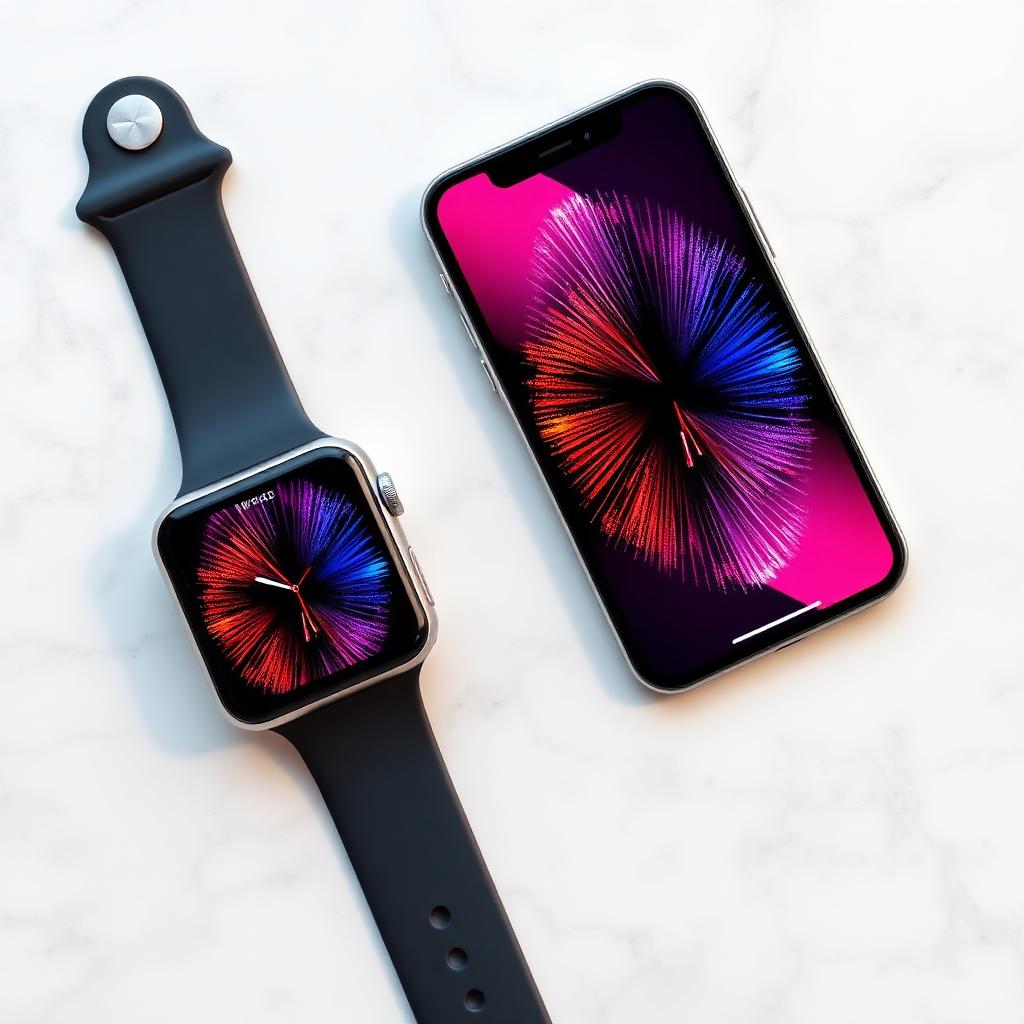
- Tap Continue, then hold the watch in the camera viewfinder so the swirling blue particle animation fits the on-screen frame. Pairing confirms in 30 to 60 seconds.
- Choose Restore from Backup (not Set Up as New). The watch pulls activity, workout, and Health history from iCloud.
The full sync takes 5 to 30 minutes depending on how much music, podcasts, and photos are queued for the watch. Keep both devices on Wi-Fi and side by side.
The manual path: unpair, then pair fresh
Use this if you do not have access to the old iPhone, or you only want to move the watch without migrating your history.
- On the old iPhone (if available), open the Watch app, My Watch, tap the watch name at the top, then the small (i) info icon, then Unpair Apple Watch. This deregisters the watch from your Apple ID.
- If you do not have the old phone, the watch can still be erased from the watch itself: Settings, General, Reset, Erase All Content and Settings.
- On the new iPhone, open the Watch app and tap Start Pairing.
- Run the camera scan as above and choose Set Up as New Apple Watch.
You will keep your hardware, but workout history, sleep records, and the activity ring streak start fresh.
What if the camera scan fails
The blue particle animation needs even lighting and a steady hand. If pairing keeps timing out:
- Tap Pair Apple Watch Manually at the bottom of the camera screen.
- On the watch, tap the (i) info button to reveal a 6-digit pairing code.
- Enter that code on the iPhone.
Manual pairing avoids the camera step entirely and almost always works on the first attempt.
Cellular Apple Watch setup
If your watch has cellular, the new iPhone walks you through reactivating the plan during setup. Make sure your carrier supports Watch eSIM transfers; AT&T, Verizon, T-Mobile in the US, EE and Vodafone in the UK, and most major carriers do, but pre-paid lines often do not. If the cellular step fails, you can still use the watch over Bluetooth and Wi-Fi while you sort the line out with your carrier.
Preserve Health data on the move
Health data is the part that scares people most. The safety net is iCloud.
- On the old iPhone, open Settings, your name, iCloud, and confirm Health is toggled on.
- Wait for a green Last Synced timestamp under Health that is no more than an hour old.
- On the new iPhone, after sign-in, the Health app pulls your historical data automatically. The first sync can take a full day.
If the new Health app shows empty rings on day one, do not panic. As long as iCloud was on, the data is in the cloud and finishes syncing in the background.
Troubleshooting
- Pairing pop-up never appears: turn Bluetooth off and on, then put the watch into pairing mode by holding the side button.
- Restore from Backup is greyed out: your most recent iCloud backup is older than the watch firmware. Make a fresh backup on the old phone before pairing.
- Watch says Apple Watch Activation Lock: sign in with the Apple ID linked to the watch, or visit iCloud.com from a browser to remove the watch from your account.
- Carrier shows the eSIM as already in use: call the carrier to release the line, then retry the cellular setup step in the Watch app.
FAQs
Do I need the old iPhone in front of me?
Strongly recommended. The clean handoff requires a backup from the old phone and an unpair action from its Watch app.
Will my watch faces transfer?
Yes, if you restore from a backup. Custom watch faces, complications, and app layout all survive.
How long does the whole process take?
Plan on 30 to 60 minutes including the iPhone setup itself. Plug both devices in and do not interrupt the sync.
The takeaway
Back up the old iPhone with iCloud and Health turned on, restore to the new phone, then run the pairing flow inside the Watch app. The camera scan, the Restore from Backup option, and a stable Wi-Fi connection are the three checkpoints that decide whether your activity history survives the move.


