

Quick Answer
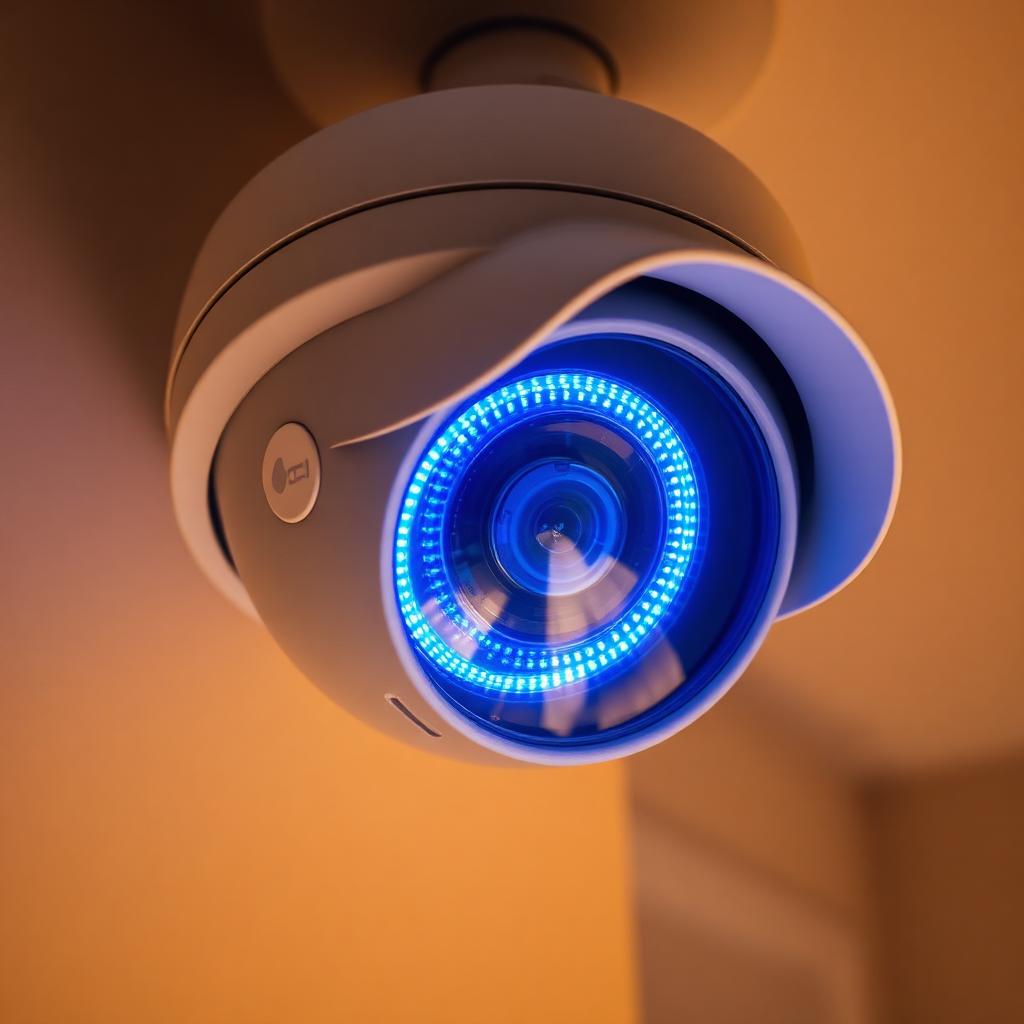
Yes. Every Ring camera and doorbell displays a solid blue LED ring around the lens or button whenever a user opens a live stream. The light only stays on for the duration of the active session.
The Ring app also logs every Live View session inside the Event History timeline, separate from automated motion recordings. Anyone with shared access can scroll back and see exactly when the camera was streamed and for how long.
Pre Roll, two way audio, and motion alerts each have their own light pattern, so reading the LED correctly is the most reliable way to tell.
The blue light, decoded
Ring uses the same LED across the lineup but the patterns mean different things. The four you actually need to recognize are below.
- Solid blue ring or solid blue button. Live View is active. Someone is currently streaming the camera through the app or web dashboard.
- Blue light spinning or flashing. Two way audio is connecting or active. The user is also able to speak through the camera's speaker.
- Slow blue blink. The device is connecting to Wi Fi or completing a firmware update.
- Four white dots rotating. The device is booting after a power loss.
The most important pattern for privacy is the steady solid blue. If you see it and no one in the household admits to having the app open, that is the signal something is off.
The Event History audit trail
Every Ring account holder and shared user can review the camera's Event History from inside the app.
- Open the Ring app and tap the camera you want to audit.
- Tap Event History at the top of the device screen.
- Filter by event type using the filter icon in the top right.
Ring tags every entry. Motion Detected events use an orange person icon. Live View events use a blue camera icon and the entry reads "Someone is watching the camera" with the exact timestamp. If two way audio was used during that session, the entry adds a microphone icon.
Live View events do not save the actual video unless the viewer manually taps Record. Even so, the timestamp itself is unfalsifiable, so you can always confirm whether the camera was viewed at a given moment.
Who can see your Ring camera
Three categories of people can open a Live View on any given Ring camera.
- The account owner. The person who set up the device and pays for any Ring Protect plan.
- Shared users. Family members or roommates the owner has added through the Shared Users settings. They have full live and event access but cannot change device settings.
- Guest users. A limited tier with no Live View access, only event playback.
Law enforcement no longer has back door access. Ring ended that program in 2024 and now requires a warrant or a user authorized share for any video to leave the platform. Amazon employees cannot view encrypted footage and cannot view any footage at all without a documented support case the user has opened.
What if the blue light comes on for no reason
Sometimes a brief blue light flicker is normal. The camera runs internal self checks, syncs with the cloud, and refreshes firmware periodically. A flicker that lasts under one second is almost certainly housekeeping.
A solid blue that lasts 10 seconds or more, with no one in the house viewing the camera, is the signal to act.
- Open the Ring app and check Event History for a Live View entry at that timestamp.
- Review the Shared Users list under Settings, Users, and Shared Access. Remove anyone you do not recognize.
- Change your Ring password and turn on two factor authentication if it is not already on.
- Sign out of all sessions from Settings, Account, Sign Out All Devices.
If you still see unexplained Live View sessions after those steps, file a security report with Ring support. Account takeovers are rare but they do happen through reused passwords leaked in other breaches.
Hardening your Ring account
The blue light and the audit log only matter if your account itself is secure. Three account level controls close the most common gaps.
- Two factor authentication. Required by Ring since 2020 but worth confirming. Settings, Account, Two Step Verification. Use an authenticator app rather than SMS for the strongest protection.
- Verified devices list. Settings, Account, Authorized Client Devices shows every phone and computer signed in to your account. Remove anything you do not recognize.
- Sign Out All Devices. A single tap that invalidates every existing login and forces every device to sign back in. Run it any time you suspect compromise.
Combined with a unique password manager generated credential, these three steps eliminate almost every realistic path an outsider would use to view your cameras.
The takeaway
You can absolutely tell when someone is watching you on Ring. The solid blue LED is the real time signal and Event History is the audit log. Read both, restrict shared user access, and turn on two factor authentication and you keep full control over who is watching and when.
Frequently Asked Questions
Does the blue light always come on when someone is watching?
Yes, on every consumer Ring camera and doorbell. There is no hidden mode that disables the LED.
Can Amazon employees watch my Ring camera?
No. Ring policy and the 2024 service overhaul restrict employee access to documented support cases authorized by the account owner.
Can a shared user view without me knowing?
They can view, but the blue light still turns on and the Live View session is logged in Event History.
How do I remove a shared user?
Open the Ring app, go to Settings, Users, Shared Access, tap the user's name, and select Remove.


