Quick Answer
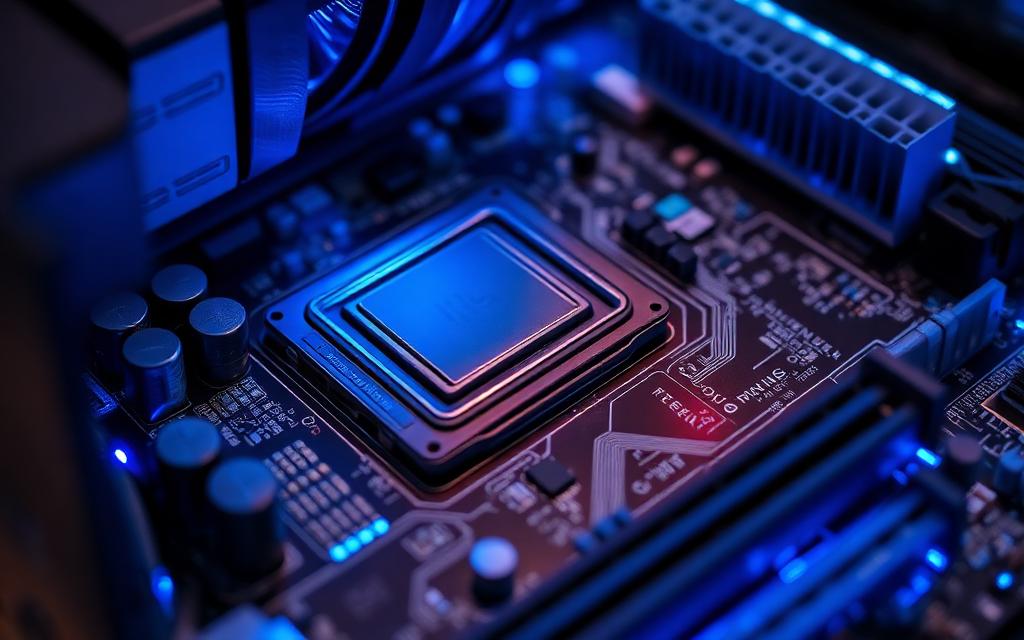
The BIOS, or Basic Input/Output System, is fundamental firmware stored on a small memory chip on your computer's motherboard. It acts as the initial interpreter between your hardware components and the operating system. Essentially, when you power on your computer, the BIOS is the very first software to execute, performing crucial checks and preparing the system for operation.
During startup, the BIOS takes charge of a process called the Power-On Self-Test (POST). This diagnostic routine verifies that essential hardware components, such as the CPU, RAM, and graphics card, are functioning correctly. If any critical issues are detected, the BIOS will typically issue beeps or display error codes to alert you before the system attempts to boot further.
Once the POST is complete and hardware is validated, the BIOS then searches for an operating system to load. It follows a predefined boot order, checking storage devices like hard drives, SSDs, or USB drives until it finds a bootable partition. After locating the OS, the BIOS hands over control, allowing your operating system to fully load and present you with your desktop.
The Core Function of BIOS: Initializing Your Hardware
When I press the power button on my computer, the very first thing that happens internally, before I see any lights or hear any fans, is the activation of the BIOS. This seemingly simple act kicks off a complex sequence of events designed to bring my system to life. Without the BIOS, my computer would simply be a collection of inert components, unable to communicate or function.
My BIOS is essentially the system's foundational instruction set. It's permanently stored on a specialized chip, often a flash memory chip, directly on the motherboard. This ensures it's always available, even when the hard drive or operating system isn't accessible. Think of it as the system's earliest consciousness, waking up and performing an internal self-assessment.
My primary role at this stage is to initialize and test the most basic hardware components. This process is crucial because every other operation, including loading the operating system, depends on these fundamental parts working correctly. If the CPU isn't responding, or if the system RAM is faulty, the BIOS needs to identify these issues immediately.
- Performs the Power-On Self-Test (POST) to check CPU, memory, and other essential hardware.
- Initializes basic input and output devices, like the keyboard and mouse.
- Manages the communication between the CPU and attached peripherals at a rudimentary level.
- Provides a set of low-level routines for hardware control.
- Ensures the system clock and timers are correctly set before the OS takes over.
- Loads the initial boot loader, which then helps in launching the operating system.
BIOS vs. UEFI: The Evolution of Firmware
For decades, the traditional BIOS was the standard for computer firmware. However, as hardware capabilities advanced and operating systems became more sophisticated, the limitations of the classic BIOS became apparent. This led to the development and widespread adoption of UEFI, or Unified Extensible Firmware Interface, which I now encounter in most modern computers, particularly those manufactured after 2010.
The primary distinction I notice between BIOS and UEFI is not just in their capabilities, but also in their underlying architecture. Traditional BIOS operates in a 16-bit processor mode and has severe limitations on addressing memory, usually restricted to 1MB. This meant it couldn't fully utilize the potential of modern, high-capacity hardware. UEFI, on the other hand, operates in a 32-bit or 64-bit mode, allowing it to leverage much more memory and processing power.
One of the most significant advantages I appreciate about UEFI is its support for larger hard drives and advanced boot options. Classic BIOS was limited to booting from drives up to 2.2 terabytes (TB) due to its reliance on the Master Boot Record (MBR) partitioning scheme. UEFI, using the GUID Partition Table (GPT), can boot from drives far exceeding this size, which is essential given the prevalence of 4TB, 8TB, and even larger drives today. This also streamlines the boot process and offers enhanced security features, which I find reassuring.
Another notable improvement I’ve observed is the user interface. While traditional BIOS often presented a stark, text-only interface, many UEFI implementations offer graphical, mouse-driven interfaces. This makes navigating settings and configuring boot options much more user-friendly. I can easily adjust complex settings without memorizing keyboard shortcuts or wading through cryptic menus.
- Traditional BIOS uses 16-bit processing and has a 1MB memory limit.
- UEFI operates in 32-bit or 64-bit mode, supporting more memory and faster processing.
- BIOS is restricted to MBR partitioning, limiting boot drives to 2.2 TB.
- UEFI uses GPT, enabling booting from drives much larger than 2.2 TB.
- UEFI offers secure boot features to prevent malicious software from loading during startup.
- Many UEFI interfaces are graphical and mouse-driven, unlike the text-based BIOS.
Navigating BIOS Settings: Configuration and Customization
Accessing and navigating my BIOS settings is an area where I can really fine-tune my system's behavior before the operating system even loads. This is typically done by pressing a specific key, like Delete, F2, F10, or F12, immediately after powering on the computer. The exact key definitely varies by manufacturer, so I often have to consult my motherboard manual or look for on-screen prompts during startup.
Once I'm in the BIOS setup utility, I find a range of options categorized for ease of use. These categories commonly include system information, boot order, integrated peripherals, and security settings. For instance, in the 'System Information' section, I can view details about my CPU, RAM, and BIOS version, which are useful for troubleshooting or upgrades. It's a snapshot of my system's core components before any software takes over.
The 'Boot Order' section is one I frequently interact with, especially when I need to install a new operating system or run diagnostic tools from a USB drive. Here, I can specify the sequence in which my computer searches for a bootable device. If I want to boot from a USB stick, I'll move it to the top of the boot priority list. This control gives me significant flexibility in managing my system's startup behavior.
I can also adjust settings related to integrated peripherals, such as enabling or disabling onboard audio, network adapters, or USB controllers. In some advanced BIOS setups, I might even be able to tweak CPU settings like overclocking, though I approach those with caution due to the potential for system instability. The key is to understand what each setting does before making changes to avoid unintended consequences.
Security settings are another critical area. Here, I can set a BIOS password to prevent unauthorized access to the system's firmware settings. Some modern UEFI systems also offer Secure Boot configuration, which is designed to ensure that only trusted software loads at startup, adding an extra layer of protection against malware.
- Access BIOS setup by pressing a specific key (e.g., Delete, F2, F10) during startup.
- View system information like CPU type, RAM capacity, and BIOS version.
- Adjust boot order to prioritize booting from different devices (e.g., SSD, USB drive).
- Enable or disable integrated peripherals like onboard audio, Wi-Fi, or Ethernet.
- Configure advanced CPU settings, including virtualization technology or fan control.
- Set BIOS passwords and enable security features like Secure Boot to protect system integrity.
The Power-On Self-Test (POST): My System's First Check-Up
When I hit the power button on my computer, the very first diagnostic routine my system performs is the Power-On Self-Test, or POST. This isn't just a simple check, it's a comprehensive process that verifies the functionality of all critical hardware components before handing over control to the operating system. It's my computer's way of ensuring everything is in working order before attempting to boot fully.
During POST, the BIOS actively checks my CPU, RAM, graphics card, and other essential peripherals. I usually won't see much on the screen during this rapid process, perhaps just a manufacturer's logo or a brief text prompt. However, behind the scenes, the BIOS is running through a checklist, looking for problems that could prevent the computer from starting up correctly. It's a quick, silent audit of my system's essential organs.
If the POST detects an issue with a critical component, it won't proceed with the boot process. Instead, it communicates the error to me, often through a series of audible beeps or specific error codes displayed on the screen. For example, a certain sequence of beeps might indicate a RAM problem, while another might point to an issue with the graphics card. Understanding these codes is invaluable for diagnosing startup failures.
A successful POST is typically signaled by a single short beep, or sometimes no beep at all, followed by the appearance of the operating system loading screen. This tells me that the core hardware is functioning as expected and the BIOS is ready to begin loading the operating system. If my computer doesn't make any POST beeps and doesn't display anything on the screen, that's usually a strong indicator of a severe hardware fault, often with the CPU, RAM, or motherboard itself.
For systems with UEFI, the POST process is often integrated into a more streamlined startup, sometimes referred to as 'Fast Boot.' While the underlying checks are still performed, the experience is designed to be quicker, often skipping initial display messages or delaying the display of error codes until later in the boot sequence. This is a noticeable improvement for speed, but can sometimes make troubleshooting those initial errors a bit trickier.
- Verifies the integrity of the CPU, RAM, graphics card, and other critical components.
- Occurs immediately after the computer is powered on and before the operating system loads.
- Communicates hardware errors through beep codes or on-screen error messages.
- A successful POST typically results in a single short beep or a silent transition to OS loading.
- Prevents the system from booting further if a critical hardware failure is detected.
- For UEFI systems, POST is often integrated into a faster boot sequence with enhanced diagnostics.
Updating Your BIOS: Why and How to Do It
Updating my BIOS, or more accurately my UEFI firmware on modern systems, is a process I approach with a good deal of caution, but one that can offer significant benefits. I generally consider a BIOS update when I'm experiencing specific hardware compatibility issues, looking to enable support for newer components, or addressing known bugs and security vulnerabilities identified by my motherboard manufacturer. For example, a BIOS update might be necessary to support a newly released CPU model, or to fix stability issues with certain memory configurations.
However, I also understand that updating the BIOS is not a routine task like updating an operating system. It carries inherent risks. If the update process is interrupted, or if I use the wrong firmware file, it can potentially 'brick' my motherboard, rendering it unusable. This is why I always ensure my power supply is stable, disable any conflicting software, and download the firmware directly from my motherboard manufacturer's official support website, making absolutely certain it matches my specific motherboard model and revision.
The actual process of updating my BIOS typically involves a few common methods. Many modern motherboards come with built-in utilities, often accessible directly from within the BIOS setup itself, which can flash the new firmware from a USB drive. Some manufacturers also provide Windows-based flashing utilities, though I generally prefer the USB method as it bypasses the operating system entirely, reducing potential conflicts.
Before I even consider an update, I always back up my current BIOS settings. This way, if something goes wrong or if the new firmware introduces unexpected issues, I can revert to my previous configuration without starting from scratch. I also make sure to read the update notes provided by the manufacturer very carefully, looking for specific bug fixes, new features, or any reported issues with the update itself. This diligence helps me avoid unforeseen problems.
While I don't update my BIOS frequently, I recognize its importance for maintaining system compatibility, stability, and security over the lifespan of my computer. It's a powerful tool for extending the relevance of my hardware, especially with the rapid pace of technological advancements I've observed in 2024 and looking ahead to 2026.
- Updates can improve hardware compatibility, system stability, and introduce new features.
- Necessary for supporting newer CPUs or addressing known security vulnerabilities.
- The process is risky; an interruption or incorrect file can damage the motherboard.
- Always download BIOS updates exclusively from the motherboard manufacturer's official website.
- Common update methods include using a USB flash drive from within the BIOS or dedicated flashing utilities.
- Crucially, back up existing BIOS settings before proceeding with any update.
The takeaway
In conclusion, the BIOS (or UEFI on modern systems) is far more than just a background process; it's the very foundation upon which my computer operates. From the moment I press the power button, it diligently checks my hardware, initializes crucial components, and prepares the system to seamlessly hand over control to my operating system. Understanding its role provides a deeper appreciation for how computers function at their most fundamental level.
Whether I'm troubleshooting a startup issue, optimizing boot performance, or simply curious about my system's inner workings, the BIOS is a critical point of interaction. Its evolution into UEFI has brought enhanced capabilities, security, and a more user-friendly experience, shaping the way I interact with my computer's core functions in today's technologically advanced landscape. I always remember that careful attention to BIOS settings and updates can significantly impact my system's stability and longevity.