Quick Answer
To transfer a Starbucks gift card to the app, tap the Scan icon in the app, tap Add Card, and enter the 16-digit card number plus the 8-digit security code from the back of the card. The balance loads in seconds.
Once inside the app, you can also consolidate multiple cards by tapping Transfer Balance under any registered card.
Why bother transferring at all
Two real reasons:
- 2 Stars per dollar. Paying from an app-loaded balance earns 2 Stars per dollar spent. Paying with a raw plastic gift card at the register (without scanning the app) earns 1 Star per dollar. Transferring effectively doubles your reward speed on the same money.
- Mobile Order and Pay. A gift card that is not inside the app cannot be used for mobile pre-order, which is the whole convenience of the platform.
If you are handed a $50 gift card and leave it as plastic, you will earn 50 Stars over the life of the card. If you transfer it into the app first, you will earn 100 Stars on the same $50, which is half a free drink.
Step-by-step: adding a card
- Open the Starbucks app.
- Tap the Scan icon on the bottom navigation bar.
- Tap the settings gear or the + Add Card option (position varies slightly by app version).
- Choose Add Card.
- Enter the 16-digit card number.
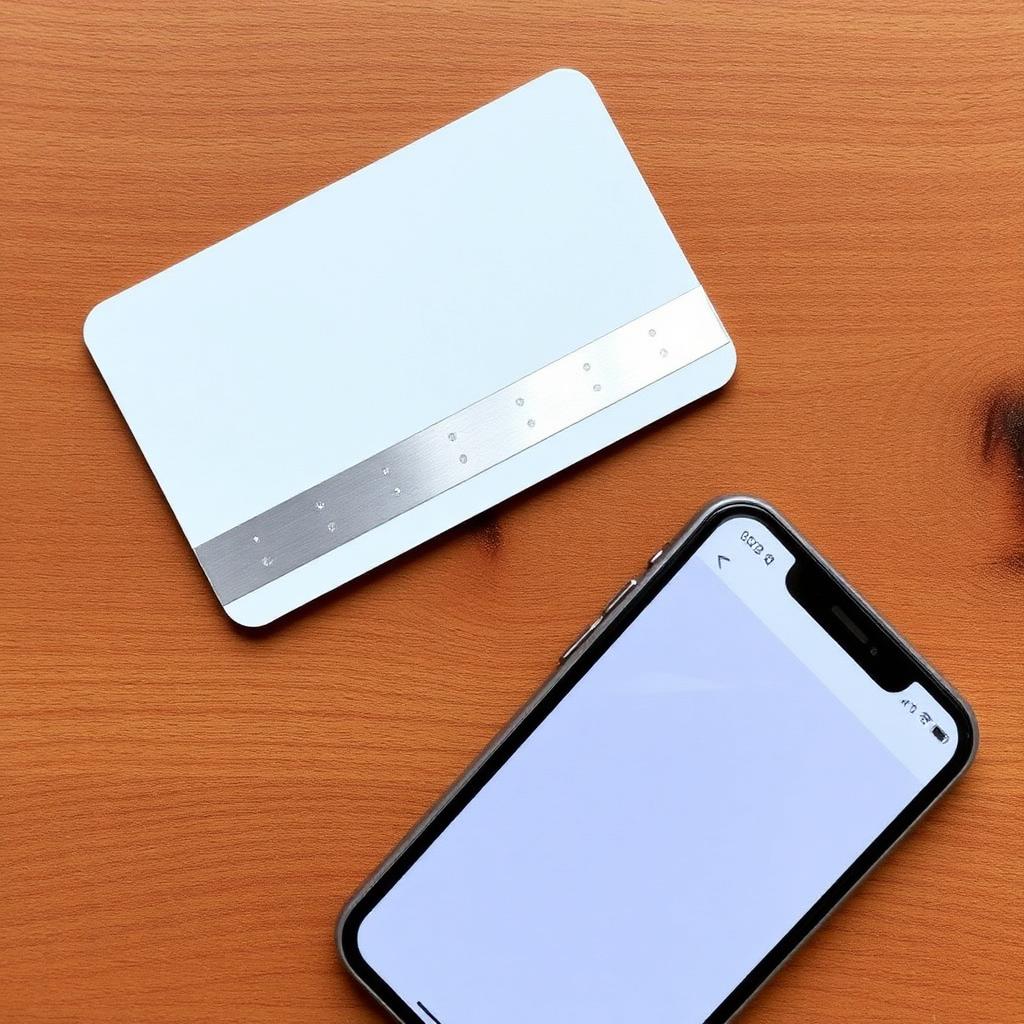
- Scratch off the silver strip on the back of the card to reveal the 8-digit security code. Enter it.
- Optional: give the card a nickname like "Birthday from Mom."
- Tap Add Card. The balance appears within a few seconds.
Step-by-step: consolidating multiple cards
If you already have three or four cards in the app, sweep them into one primary card to keep your wallet tidy:
- Inside the Scan area, tap the source card (the one you want to drain).
- Tap Manage or Transfer Balance.
- Choose the destination card (your primary).
- Enter the amount, or tap the shortcut to transfer the full remaining balance.
- Confirm. The source card drops to $0.00.
- Tap the empty source card and choose Delete Card to remove it from the wallet.
Common problems and how to fix them
"Card number invalid." Retype the 16 digits carefully; 8 and B, 0 and O, and 1 and I are common misreads on worn cards.
"Security code invalid." The scratch strip may still have residue. Rub it firmly with a coin edge.
"This card is not active." The card was never activated at the point of sale. Bring the original receipt to any Starbucks; the barista can activate it in the register system.
"Card already registered." Someone else, likely the gift giver, added it to their account first. They will need to remove it from their app before you can add it. Ask them politely.
What transfers and what does not
The transfer covers only the cash balance. It does not cover:
- Any Stars associated with the physical card (Stars live on your Rewards account, not on the card).
- Auto-reload settings (you configure those per card inside the app).
- Custom art on collectible cards; the design does not persist digitally.
Auto-reload after transferring
Once your gift card balance is inside the app and combined with your primary card, turn on auto-reload. Set it to add $25 (or $10 minimum) whenever the balance falls below $10. Every reload triggers 2 Stars per dollar, and it removes the "declined at the register" risk. If you use Apple Pay or a rewards credit card as the funding source, you also earn credit card points on the reload.
Digital eGift cards behave the same way
A Starbucks eGift card sent by email is transferred exactly like a plastic card. The 16-digit number and 8-digit security code both appear in the confirmation email. Copy them into Scan > Add Card, or tap the "Add to Starbucks app" link inside the email on a device with the app installed and it will auto-populate the fields.
Partner gift cards from grocery or big-box stores
Physical Starbucks gift cards sold at grocery, drug, and big-box retailers activate at the retailer's register when purchased. If your card fails the app add with a "not active" error, check the original store receipt for an activation line and, if missing, take the receipt back to the retailer to activate.
Corporate reward and incentive cards
Cards issued through the Starbucks Corporate Reward Card program (used by companies for employee gifts and promotions) transfer the same way. The 16-digit number and 8-digit CSC live on the back exactly as on retail cards, and the app treats them identically once registered.
Bottom line
To transfer a Starbucks gift card to the app, add it via Scan > Add Card using the 16-digit number and 8-digit security code, then use Transfer Balance to consolidate onto your primary card. The reward: 2 Stars per dollar instead of 1, plus full mobile ordering. It is the single highest-ROI move any casual Starbucks customer can make.