Quick Answer
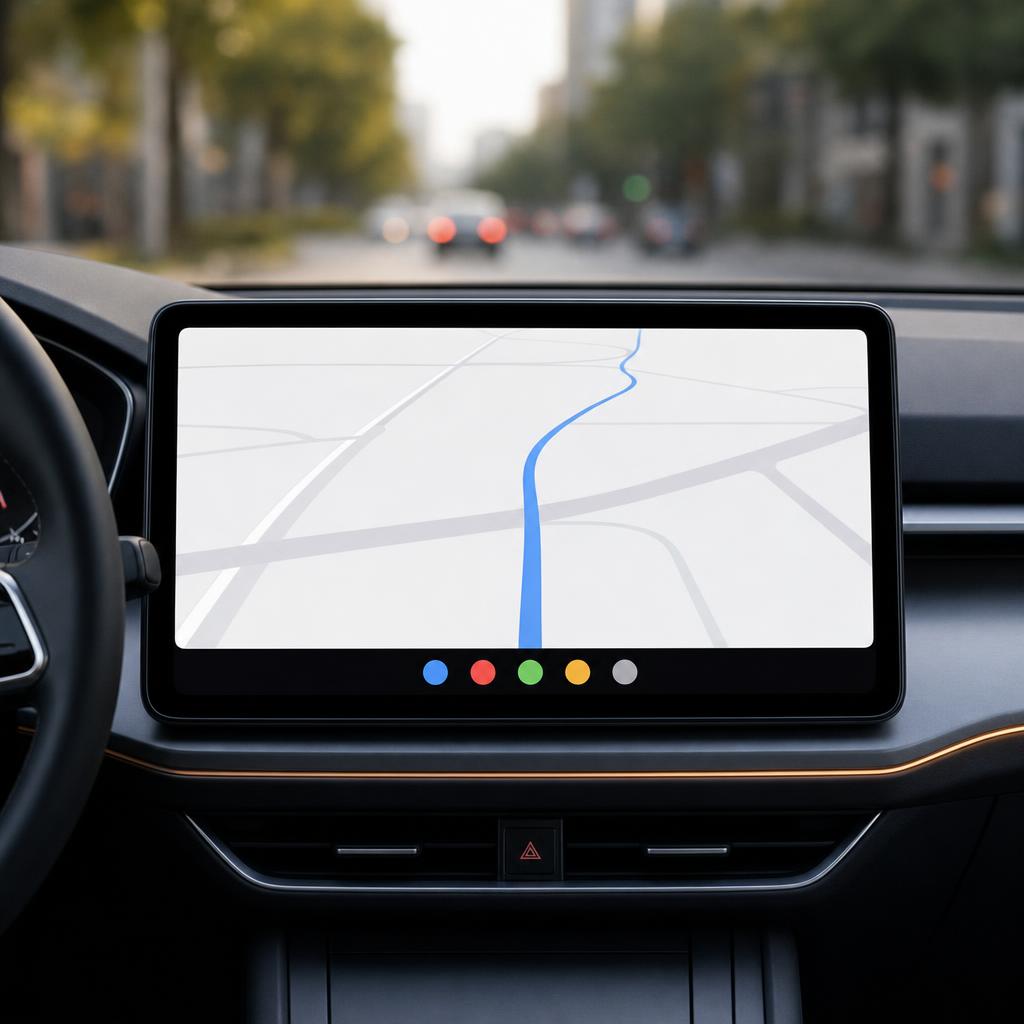
If your car has wired CarPlay, plug an Apple-certified Lightning or USB-C cable from your iPhone into the car's CarPlay-marked USB port and the interface appears on the dashboard screen in a few seconds.
If your car supports wireless CarPlay, hold the voice button on the steering wheel, then on the iPhone go to Settings, General, CarPlay, Available Cars, and tap your vehicle. After the first pair, the iPhone connects automatically every time you start the engine.
What CarPlay actually does
CarPlay is Apple's in-car interface that takes over your car's infotainment screen with a stripped-down version of iOS optimised for short, low-distraction taps. It runs on your iPhone, not on the car, which is why a brand new app appears on your dashboard the moment you install it on the phone.
Supported app categories include navigation (Apple Maps, Google Maps, Waze), audio (Apple Music, Spotify, Audible, Pocket Casts, your podcast app of choice), messaging (iMessage, WhatsApp, Telegram), and a smaller list of EV charging, parking and food ordering apps. Apple keeps third-party access tight on purpose so the interface stays predictable while driving.
Before you connect
Check three things first. Your iPhone is running iOS 14 or newer. Siri is turned on (Settings, Siri and Search; CarPlay relies on Siri for hands-free actions). And your car supports CarPlay; Apple keeps an up-to-date list on its website, but most cars sold since 2017 do.
If you want wireless CarPlay specifically, your car has to support it (about half of recent models do). Older cars that only have wired CarPlay can be upgraded with a small adapter box (CarlinKit, Ottocast and Motorola MA1 are the popular brands) that plugs into the wired USB port and gives you wireless from the phone end.
Wired connection
This is the simplest setup. Take an Apple-made or MFi-certified cable (the one that came in your iPhone box is fine) and plug it from the phone into the USB port on the dashboard that has the small phone-and-arrow CarPlay icon next to it.
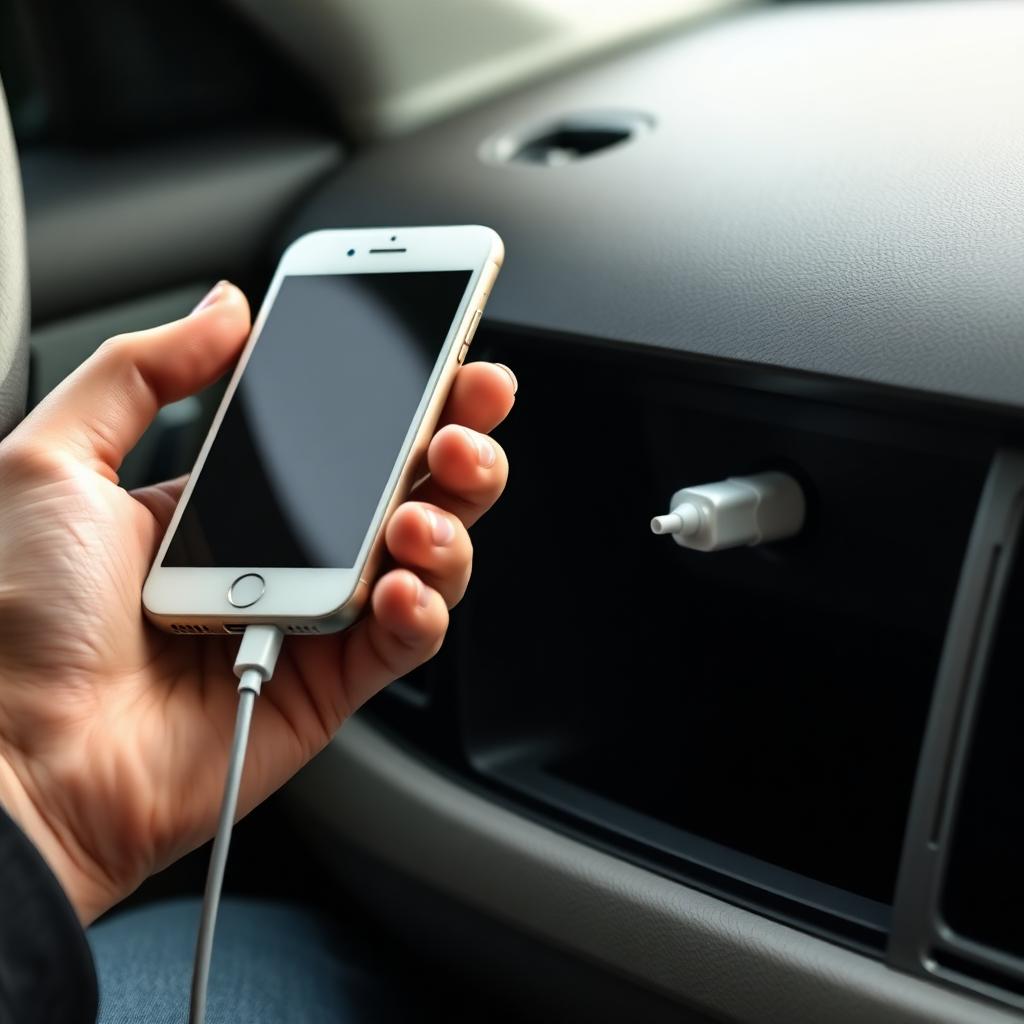
The car will prompt you the first time, asking whether to trust the device. Tap yes on both the phone and the dashboard. From then on CarPlay launches automatically the moment you plug in.
If nothing happens, the cable is the usual culprit. Charge-only cables do not carry the data signal CarPlay needs. Try the cable in a laptop and see if it transfers photos; if not, replace it with a known-good MFi cable.
Wireless connection
Wireless CarPlay uses Bluetooth to establish the connection and then hands off to a private 5 GHz Wi-Fi link for the actual interface, which is why both Wi-Fi and Bluetooth need to be on for it to work.
- Start the engine so the car's infotainment is awake.
- Press and hold the voice command button on the steering wheel for about 3 seconds. This puts the car into pairing mode.
- On the iPhone, open Settings, General, CarPlay, Available Cars.
- Tap the car's name. Confirm the pairing code on both screens.
From the second drive onwards, the iPhone connects on its own as soon as it senses the car is on. There is nothing to plug in.
Customise the dashboard layout
You can decide which apps appear on the CarPlay home screen and in what order. On the iPhone, open Settings, General, CarPlay, tap your car, then tap Customize. Drag the rows to reorder and tap the minus button to hide an app entirely.
The Dashboard view (the multi-pane icon in the bottom corner of the CarPlay screen) splits the display into your active navigation map on the left, Siri suggestions in the top right and your audio controls in the bottom right. For most drivers this is the one screen you want open the whole drive.
Make the most of Siri
Almost every interaction CarPlay supports while moving routes through Siri. Long-press the voice button on the steering wheel and say things like:
- Navigate to the nearest petrol station.
- Send a message to Sam saying I will be 10 minutes late.
- Play my Friday playlist on Spotify.
- Read my new messages.
- Skip to the next track.
The system reads messages out loud and lets you reply by voice, which is the whole point of CarPlay's design: eyes on the road, hands on the wheel.
Do Not Disturb While Driving
Inside Settings, Focus, Driving on the iPhone, you can set the Driving focus to switch on automatically when CarPlay is connected. This silences notifications and auto-replies to messages with a short note that you are driving and will reply later. Family members or anyone in your favourites can still get through in genuine emergencies.
Most drivers leave this off because the iPhone is supposed to stay locked while CarPlay is in use anyway, but if you carry the phone in a pocket or bag, it is worth turning on so you are not distracted by buzzes.
If CarPlay disconnects mid-drive
Random drops are usually one of three things. The Lightning or USB-C port on the phone is dusty (blow it out with compressed air). The cable is failing (swap to a known-good one). Or, on wireless, another Bluetooth device in your pocket (like AirPods) is grabbing the audio stream. Disconnect the other device and the car will reclaim the link.
If CarPlay refuses to start at all after an iOS update, the standard fix is Forget This Car (Settings, General, CarPlay, tap the car, Forget This Car) followed by a fresh pair.
The takeaway
CarPlay is the closest thing to a sane in-car interface most drivers will ever get. Plug in a real Apple cable or pair once wirelessly, drag the apps you actually use to the top of the dashboard, lean on Siri instead of touching the screen, and turn on the Driving focus if you are easily distracted. After a week of using it, the car's native infotainment will feel slow by comparison.