Quick Answer
A loud laptop fan is not a fault by itself. It is your machine telling you the CPU or GPU is running hot and the fan has been forced to its highest speed to stop the silicon from throttling or being damaged.
The fastest fix is to close runaway background apps, then blow dust out of the vents with compressed air. If the laptop is more than two or three years old and still loud, the factory thermal paste has likely dried out and needs replacing.
Why your fan is so loud in the first place
Modern laptops are tuned to run as quietly as possible until the internal temperature crosses a threshold, usually around 80 to 90 degrees Celsius for the CPU. Once that line is crossed, the embedded fan controller ramps the blades up in steps until the heat is back under control.
Letting that situation continue for hours is bad in two ways. It wears out the fan bearings faster than normal, and it triggers thermal throttling, where the CPU deliberately drops its clock speed to protect itself. That is why a hot laptop also feels sluggish.
Step 1: kill background CPU hogs
Before unscrewing anything, rule out a software cause. A single misbehaving Chrome tab, a stuck cloud sync agent or a hidden cryptominer can pin a CPU at 100 percent and keep the fans roaring even when nothing visible is happening.
On Windows, press Ctrl plus Shift plus Esc to open Task Manager, click the CPU column to sort by usage, and end any process that is eating more than 20 percent while you are idle. On macOS, open Activity Monitor from Spotlight and do the same thing in the CPU tab.
If a browser is the culprit, open its own task manager (Shift plus Esc in Chrome and Edge) to find the exact tab or extension. Closing it usually quiets the fan inside 60 seconds.
Step 2: check where the laptop is sitting
Almost every laptop pulls cool air in through the underside and pushes hot air out of the rear or side. Placing it on a duvet, a cushion or even a soft hoodie blocks those intakes and forces the fans to spin harder for less airflow.
Move the laptop to a hard, flat surface. If you regularly work in bed or on the sofa, buy a cheap aluminium lap stand or even a wooden chopping board to sit it on. That single change can drop core temperatures by 5 to 10 degrees with no other effort.
Step 3: blow out the dust
After a year or two, the thin copper fins behind the exhaust vent fill up with a felt of dust and pet hair that strangles airflow. This is the single biggest cause of suddenly loud laptops.
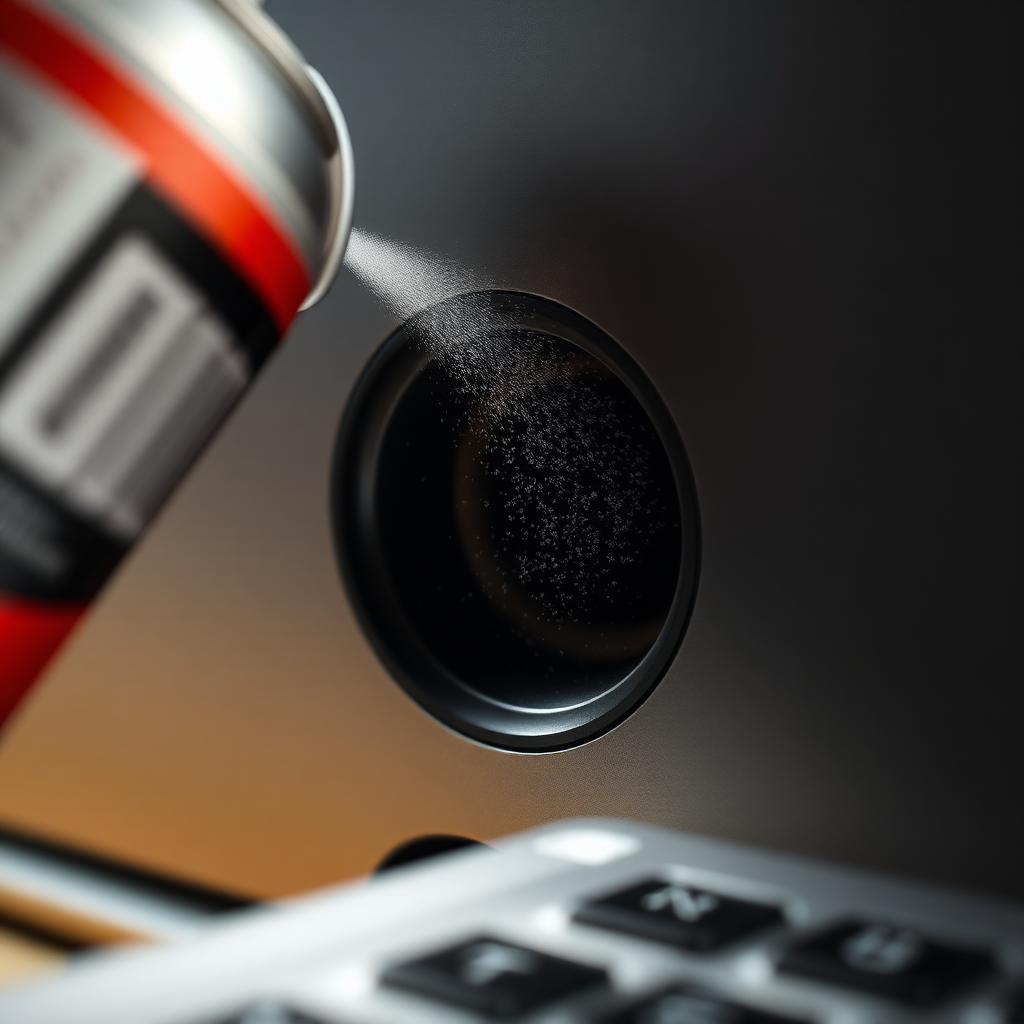
Shut the laptop down and unplug it. Hold a can of compressed air upright, two inches from the rear exhaust, and give it short half second bursts. Important safety note: slide a toothpick gently between the fan blades through the grille first so the blades cannot spin. A free-spinning fan generates a small voltage back into the motherboard and can damage the controller chip.
Repeat at every intake grille on the bottom of the chassis. You will usually see a small cloud of grey lint puff out within seconds.
Step 4: update the BIOS and check the fan curve
Laptop makers regularly ship BIOS or firmware updates that tweak fan behaviour and thermal limits. A two year old firmware can sometimes spin the fan aggressively where a current one would not.
Go to your laptop manufacturer's support site, type in your exact model and download the latest BIOS, chipset and graphics drivers. For most gaming laptops you also get a vendor utility (Lenovo Vantage, ASUS Armoury Crate, Dell Power Manager, MSI Center) that lets you switch between performance, balanced and silent profiles. Silent or balanced caps the CPU power slightly and is usually inaudible during everyday work.
Step 5: repaste the CPU and GPU
If your laptop is three years old or more, the factory thermal paste between the CPU die and the copper heat pipe has almost certainly dried into a chalky crust. That crust acts as an insulator instead of a conductor and your fan has to work twice as hard to remove the same heat.
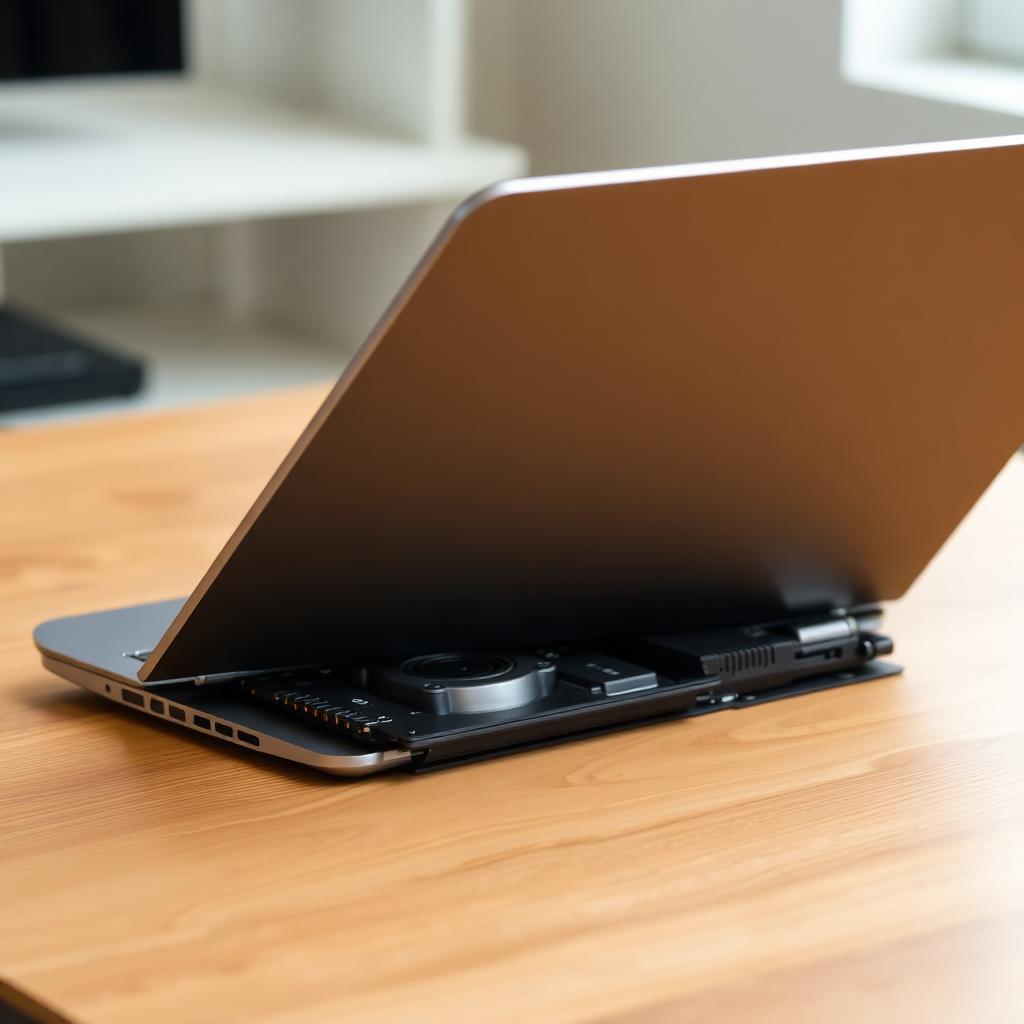
Repasting is a screwdriver job, not a soldering job. Unscrew the bottom panel, photograph each screw position as you go, unclip the fan power cable and lift the heat pipe assembly off. Use a microfibre cloth and 99 percent isopropyl alcohol to wipe the old paste off both the silicon dies and the copper plate, then put a single pea-sized drop of a quality paste (Noctua NT-H1, Arctic MX-6 or Thermal Grizzly Kryonaut) on each die. Reseat the heat pipe, tighten the screws in a diagonal pattern, and reassemble.
It is the single biggest temperature improvement you can make on an older laptop. Drops of 10 to 20 degrees Celsius are normal.
When to give up and use a cooling pad
If the laptop is still loud after all of the above, or if you only need it quiet for one specific task such as long video calls, a USB powered cooling pad with two large slow fans is a five minute fix. Look for one with fans at least 140 mm across so they can move plenty of air without sounding like the laptop itself.
The takeaway
A noisy laptop is almost always a heat problem in disguise. Kill the background hogs, give the vents a hard surface, blow out the dust, install the latest firmware and, if it is more than a couple of years old, repaste it. Do those five things and the jet engine usually goes back to being a quiet hum.