Quick Answer
For wireless, hold the PS and Create buttons on the controller for about 5 seconds until the light bar double-flashes, then pair it from Windows Settings under Bluetooth and devices. For wired, just plug a USB-C cable straight into the PC.
If you want adaptive triggers and full haptic feedback in Steam games, use the wired connection and turn on PlayStation Controller support inside Steam settings. Bluetooth gives you buttons and standard rumble in most games but historically not the advanced DualSense features.
What the DualSense actually brings to PC
The DualSense is the controller that ships with the PlayStation 5. Two features set it apart from older gamepads. The adaptive triggers can change their physical resistance mid-game (heavy when drawing a bowstring, soft when firing a pistol), and the haptic feedback motors deliver textured vibration that feels different for footsteps on gravel, rain on metal or an explosion.
On PC these features are supported in a growing list of titles including God of War Ragnarok, Spider-Man 2, Returnal, Forspoken, Cyberpunk 2077, Metro Exodus Enhanced Edition and Alan Wake 2. Most other Steam games will treat the DualSense as a standard gamepad with rumble and gyro.
Method 1: Bluetooth pairing (wireless)
Bluetooth is the right choice if you sit on a sofa or want a clean desk. Make sure your PC has Bluetooth (most laptops do; a desktop usually needs a small USB Bluetooth 5 dongle).
- Make sure the controller is off. The light bar around the touchpad should be dark.
- Press and hold the PS button (the round one in the middle) and the Create button (the small button to the left of the touchpad, with three lines on it) together for about 5 seconds.
- The light bar will start a rapid double-flash in blue. The controller is now in pairing mode.
- On Windows 11, press Windows key plus I to open Settings. Go to Bluetooth and devices, click Add device, then choose Bluetooth.
- Pick the entry called Wireless Controller from the list. When the light bar stops flashing and settles to a steady colour, you are paired.
On Windows 10 the path is Settings, then Devices, then Bluetooth and other devices, then Add Bluetooth or other device. The controller still shows up as Wireless Controller.
Method 2: USB-C cable (wired)
Wired is faster to set up and unlocks more features. Use any decent USB-C to USB-A or USB-C to USB-C cable that supports data, not a charge-only cable. The cable that came with your PS5 works perfectly.
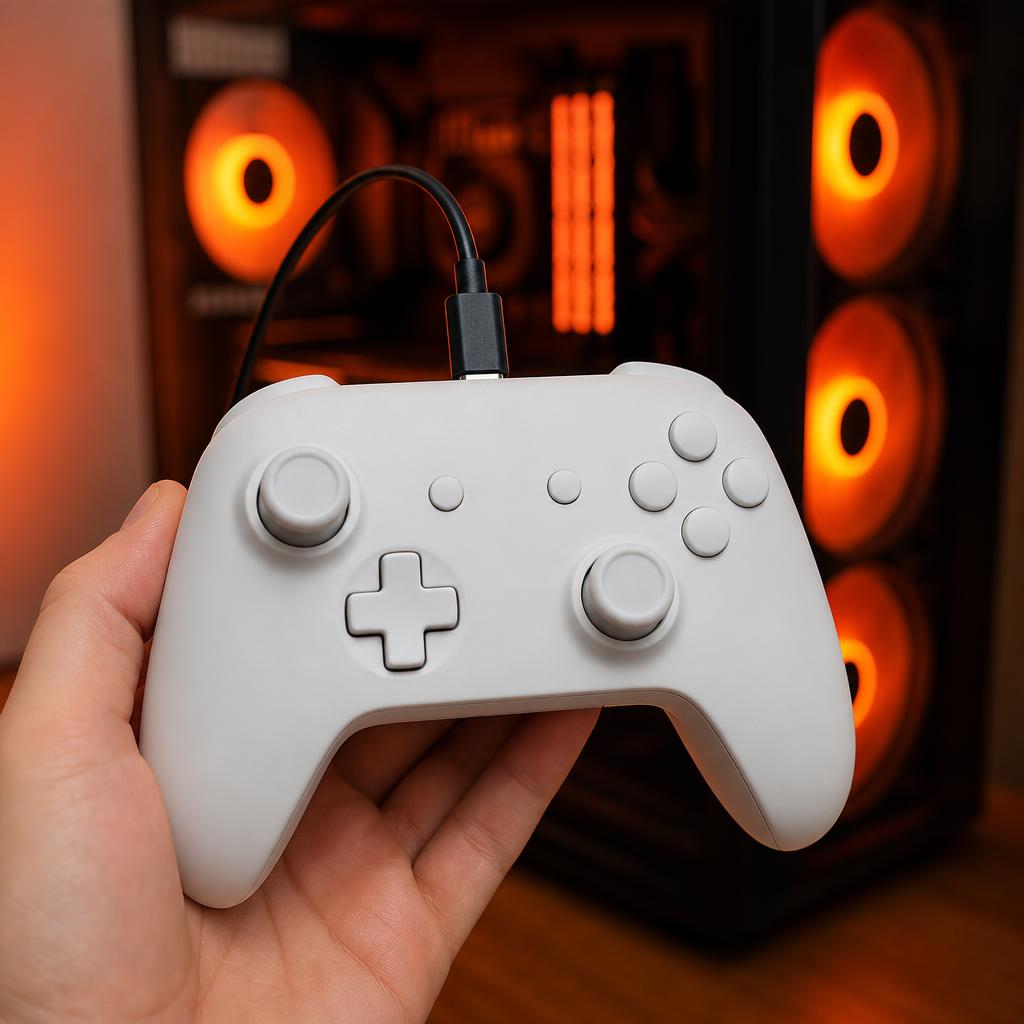
Plug one end into the controller, the other into a USB port on the PC. Windows installs the driver automatically in a few seconds. There is no other setup required. The controller will charge from the PC at the same time.
Configure Steam Input
Steam ships its own translation layer that maps DualSense inputs to whatever the game expects. To turn it on, open Steam, go to Steam, then Settings, then Controller. Make sure PlayStation Controller Support is enabled. While you are there, set the controller's PlayStation Edit Layout style if a specific game needs Xbox-style prompts.
Inside any game's Steam library page, click the gear icon, choose Properties, then Controller, and set Override for this game to Enable Steam Input. This is what makes button prompts switch from generic Xbox icons to the proper PlayStation triangle, square, circle and cross symbols in supported titles.
Getting adaptive triggers and haptics to work
This is the part where people get tripped up. Sony's haptics and adaptive triggers use a special USB-only protocol, so historically the rule has been simple: wired equals full features, Bluetooth equals basic rumble.
In mid-2026, the popular third-party app DSX added experimental haptic feedback over Bluetooth in its v3.2 beta, so the gap is starting to close. If you want to try it, install DSX from Steam, enable the latest beta channel and follow its on-screen pairing flow. For most people the safe choice is still: plug in the USB-C cable when you want the full PlayStation feel, and use Bluetooth for casual play where rumble and buttons are enough.
Inside the supported games themselves you usually do not need to do anything. The first time you launch with a wired DualSense, the engine detects it and switches on the extras automatically.
Troubleshooting common pairing issues
If Windows cannot see the controller, double-check that the light bar is double-flashing (not slow-flashing, which means it is trying to find a PS5). If it is slow-flashing, hold PS plus Create again for a full 5 seconds.
If pairing succeeds but the controller drifts or disconnects after a few minutes, the Bluetooth dongle is usually the culprit. A cheap built-in laptop Bluetooth chip will struggle with the DualSense's bandwidth. Move the dongle to a front USB port or use a 1 metre USB extension cable so the dongle sits away from metal cases.
If games still show Xbox button prompts when you do not want them to, Steam's controller settings have a per-game checkbox called PlayStation button glyphs. Toggle it inside Big Picture for any game that ignores the global setting.
Battery life and charging
The DualSense gets roughly 6 to 12 hours of play per charge depending on whether haptics and the light bar are running full blast. To charge it without a PS5 nearby, plug it into the PC via USB-C or into any standard 5V USB charger. The light bar pulses orange while charging and turns off when full.
To save battery on PC, you can dim the light bar in Steam's controller settings or, in some games, turn it off entirely.
The takeaway
Connecting a PS5 controller to a PC is a five minute job once you know the trick: hold PS and Create together for 5 seconds for Bluetooth, or plug in a USB-C cable for wired. Turn on PlayStation Controller Support in Steam, prefer the cable if you want the full adaptive trigger and haptic experience, and you are ready to play.