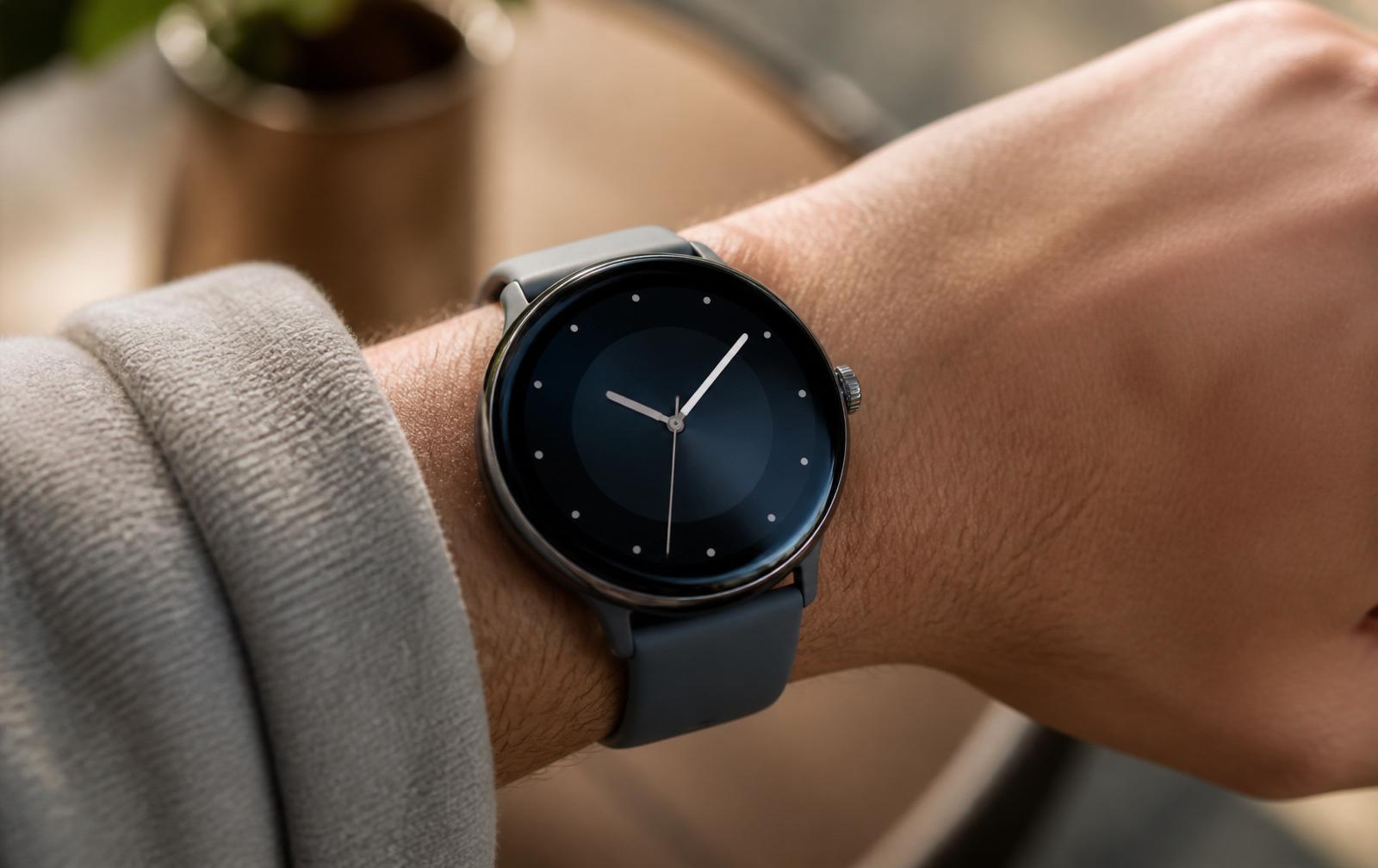
Quick Answer
Touch and hold the center of your current watch face for a second, then swipe left or right to cycle through your saved faces. Tap one to make it active. To add a brand new face or change complications, open the Watch app on your paired iPhone, tap Face Gallery at the bottom, pick a design, configure complications, and tap Add.
If you want the old gesture where a quick edge swipe changes faces, re-enable it under Settings, Clock, Swipe to Switch Watch Face on the watch itself. Apple turned this off by default in newer watchOS releases to stop accidental swaps.
Three ways to switch a face
| Method | Best for |
|---|---|
| On-wrist touch and hold | Quickly cycling through saved faces |
| iPhone Watch app, Face Gallery | Adding new faces and configuring complications |
| Swipe to Switch toggle | Restoring the old edge-swipe gesture |
Method 1: the on-wrist touch and switch
This is the fastest way when your iPhone is across the room. Raise your wrist to wake the display. Touch and hold the center of the current watch face for about one second. The face shrinks back into customization mode and your saved layouts appear as a horizontal reel. Swipe left or right to scroll through them, then tap the one you want. The selected face goes active immediately.
From the same customization view you can swipe up on a face to get an Edit button, which lets you change complications and accent colors directly on the wrist without picking up the phone.
Method 2: deep customization via the iPhone Watch app
For the full library of Apple-designed faces and fine-grained complication configuration, the Watch app on your iPhone is the right tool.
- Open the Watch app on the paired iPhone.
- Tap Face Gallery on the bottom navigation bar.
- Browse the categories (Modular, Photos, Wayfinder, Chronograph Pro, and so on). Tap a design to open its editor.
- Tap each complication slot (top left, bottom, subdial) and assign the data you want there: heart rate, weather, calendar, UV index, timers, third-party app data, and more.
- Tap Add. The face syncs to the watch over Bluetooth and becomes active.
Method 3: bring back the edge swipe gesture
Older watchOS versions let you switch faces by swiping horizontally on the watch screen edge. Apple turned that gesture off by default in newer releases because users were accidentally changing faces during workouts and notifications. If you miss it, the toggle is buried in settings:
- Press the digital crown to open the app grid.
- Tap Settings (the gear icon).
- Scroll down to Clock and tap it.
- Turn on Swipe to Switch Watch Face.
What complications can show, and what they cannot
Complications are the small data widgets you can place around a face. Each face supports a different set of slots: some have one small subdial, some have eight slots of varying sizes. The available data sources include first-party Apple data (Activity rings, heart rate, weather, calendar, timers, alarms, world clock, sunrise and sunset, UV index) and any installed third-party app that exposes a complication.
One limitation worth knowing: some custom faces (like Photos or your own image) restrict the number of complications you can place, because the layout is built around the picture. If you want six complications, pick Modular or Infograph. If you want a portrait of your dog with the time on it, accept that two complications is the cap.
How to organize a useful collection
A common mistake is to save 15 faces and never actually use most of them. A cleaner setup is to save four to six purpose-built layouts:
- Work. Modular face with calendar, weather, and battery.
- Workout. Solar Dial or Activity face with heart rate, workout shortcut, and timer.
- Evening. Solar or Wayfinder with sunset, weather, and reminders.
- Travel. World Clock face with two time zones and weather.
- Photo. One personal face for downtime.
To remove a saved face, touch and hold the current face, swipe up on the face you want to delete, and tap Remove. Cleaning out the collection makes the on-wrist swap much faster because there are fewer screens to flip through.
The takeaway
Touch and hold for quick swaps on the wrist, use the iPhone Watch app for deep customization and complications, and toggle Swipe to Switch back on if you miss the edge gesture. Keep your saved collection small and purpose-built and the watch starts to feel like several different devices that you can switch between in one tap.