Quick Answer
Open the Starbucks app, tap Order, pick a drink, then tap Customize. From that screen you can swap the espresso roast, change the milk, adjust syrup pumps, add cold foam, and toggle toppings.
Every change updates the price and calorie count live at the top of the screen so you can see the impact before you check out.
Step 1: Get to the customize screen
Launch the app and tap the Order tab in the bottom nav. Browse to your drink (or use the search bar at the top, which is faster than scrolling for a specific item). Tap the drink, and on the drink detail page tap the white Customize button under the size selector.
If you skip Customize and go straight to Add, you get the default recipe: standard espresso roast, 2 percent milk, default syrup pumps for the size, no cold foam, no extra shots. That default recipe is fine, but it is rarely what a regular customer actually wants.
Step 2: Change the espresso roast
The first section on most espresso drinks is Espresso Roast. Every handcrafted espresso drink defaults to Signature Espresso, which is the dark, bittersweet roast Starbucks is known for. Tap the field and swap to Blonde Espresso for a lighter, sweeter, more citrus-forward cup.
Blonde also has about 10 mg more caffeine per shot than Signature, so a Grande Blonde latte lands around 170 mg vs 150 mg on Signature. The swap is free.
You can also add extra shots here. Tap the plus button next to Shots to bump from 2 to 3 or higher. Each added shot costs roughly 80 cents to a dollar depending on the market.
Step 3: Change the milk
Tap the Milk field to see the full list. Every store carries at minimum: Whole, 2 percent, Nonfat, Half and Half, Heavy Cream, Soymilk, Almondmilk, Coconutmilk, and Oatmilk. Plant milks are a flat 70 cent upcharge.
You can also request temperature adjustments here: Warm (about 130 F, safe for kids), Extra Hot (about 180 F), or Kid Temp. Warm is the setting to use if you find the default latte temperature too hot to sip right away.
Step 4: Adjust syrups and sauces
Syrups and sauces are the biggest lever for both flavor and sugar. The two categories are different:
- Syrups are thin, water-based, and sweet. Vanilla, hazelnut, toffee nut, brown sugar, sugar-free vanilla, and cinnamon dolce all live here.
- Sauces are thick and milk-based. Mocha, white mocha, caramel, and dark caramel are sauces.
Tap either Add Syrups or Add Sauces, choose a flavor, then use the plus and minus buttons to set pump count. Defaults scale with size: 3 pumps in a Tall, 4 in a Grande, 5 in a hot Venti, 6 in an iced Venti.
Cutting a Grande from 4 pumps to 2 pumps drops the added sugar by roughly 10 to 15 grams while keeping the drink recognizably flavored. It is the single easiest calorie edit in the app.
Step 5: Add cold foam or whipped cream
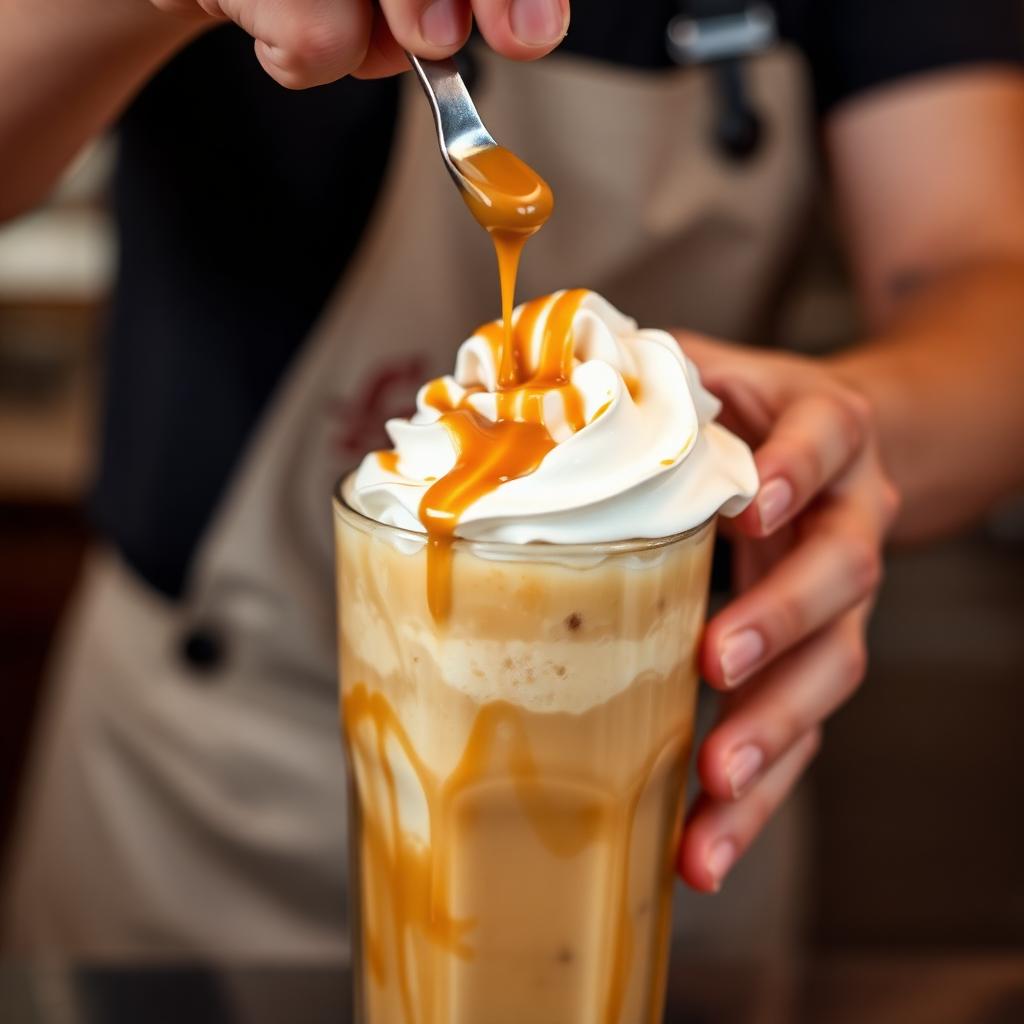
The Toppings and Cold Foams sections handle finishing layers. Tap Add Cold Foams to float a thick aerated layer on top of a cold drink. Options include Vanilla Sweet Cream Cold Foam, Salted Caramel Cold Foam, Chocolate Cream Cold Foam, and Nondairy Vanilla Sweet Cream Cold Foam (made with almondmilk). Cold foam runs about $1.25 as an add-on.
Under Toppings you can add caramel drizzle, mocha drizzle, cinnamon powder, matcha powder, sea salt, or java chips. You can also request "line the cup with caramel drizzle" to get the swirl inside the glass wall of an iced cup.
Step 6: Save the drink for next time
Once your build is dialed in, scroll to the bottom of the drink page and tap the heart icon to Favorite the drink with all your customizations. It shows up on the Order screen under Favorites so you can reorder the exact build with one tap.
Favorites also carry across store changes. Order the same build from a different city and everything lands exactly as you set it.
Customization settings people miss
- Extra ice / light ice / no ice. Under the Ice field for cold drinks. Light ice adds meaningful drink volume.
- Blended vs shaken vs iced. Any iced espresso drink can be reordered as blended or shaken from the base drink page.
- Ristretto shots. Under Espresso Roast, tap Ristretto for a sweeter, less bitter shot. Free swap.
- Half caff / decaf. Under Espresso Roast. Split shot means half regular, half decaf.
- No water in Americanos. Removes the hot water and gives you a straight shot pull in a cup.
Common mistakes
The most common customization mistake is not checking the live price at the top of the screen. Each add on ticks the price up. A Grande latte with an extra shot, oatmilk, and cold foam can easily run $1.95 more than the base drink.
The second common mistake is over-pumping syrup. If you add a new syrup, the app does not automatically drop the default syrup. Adding "3 pumps vanilla" to a Vanilla Latte gives you 3 pumps on top of the recipe's default 4, for a total of 7. Zero out the default first, then add your custom count.
Frequently asked questions
Can I add cold foam to a hot drink?
No. Cold foam only holds structure on a cold drink. Whipped cream is the hot-drink equivalent.
Can I customize a Frappuccino?
Yes. Frappuccinos have their own customization set: milk, syrup, sauce, add-ins like java chips, and whipped cream.
Do custom drinks earn the same Stars?
Yes. Stars are based on dollars spent, not drink type. A $6.50 customized drink earns more Stars than a $4.50 default one.
Can I save more than one favorite drink?
Yes, you can favorite as many drinks as you want. They appear in the Favorites tab.
Bottom line
Customizing a Starbucks drink in the app is a matter of tapping Customize and walking through six fields: espresso roast, milk, shots, syrups, sauces, and toppings or cold foam. The live price at the top of the screen keeps you honest, and the heart icon at the bottom saves the exact build for next time. Once you dial in your version once, you never have to think about it again.